The plt interface is most commonly used
Load other important library
Use plt.style.use('style') to set the visual style of your plots
The figure (an instance of the class plt.Figure) = container that contains all the objects representing axes, graphics, text, and labels.
plt is from import matplotlib.pyplot as plt
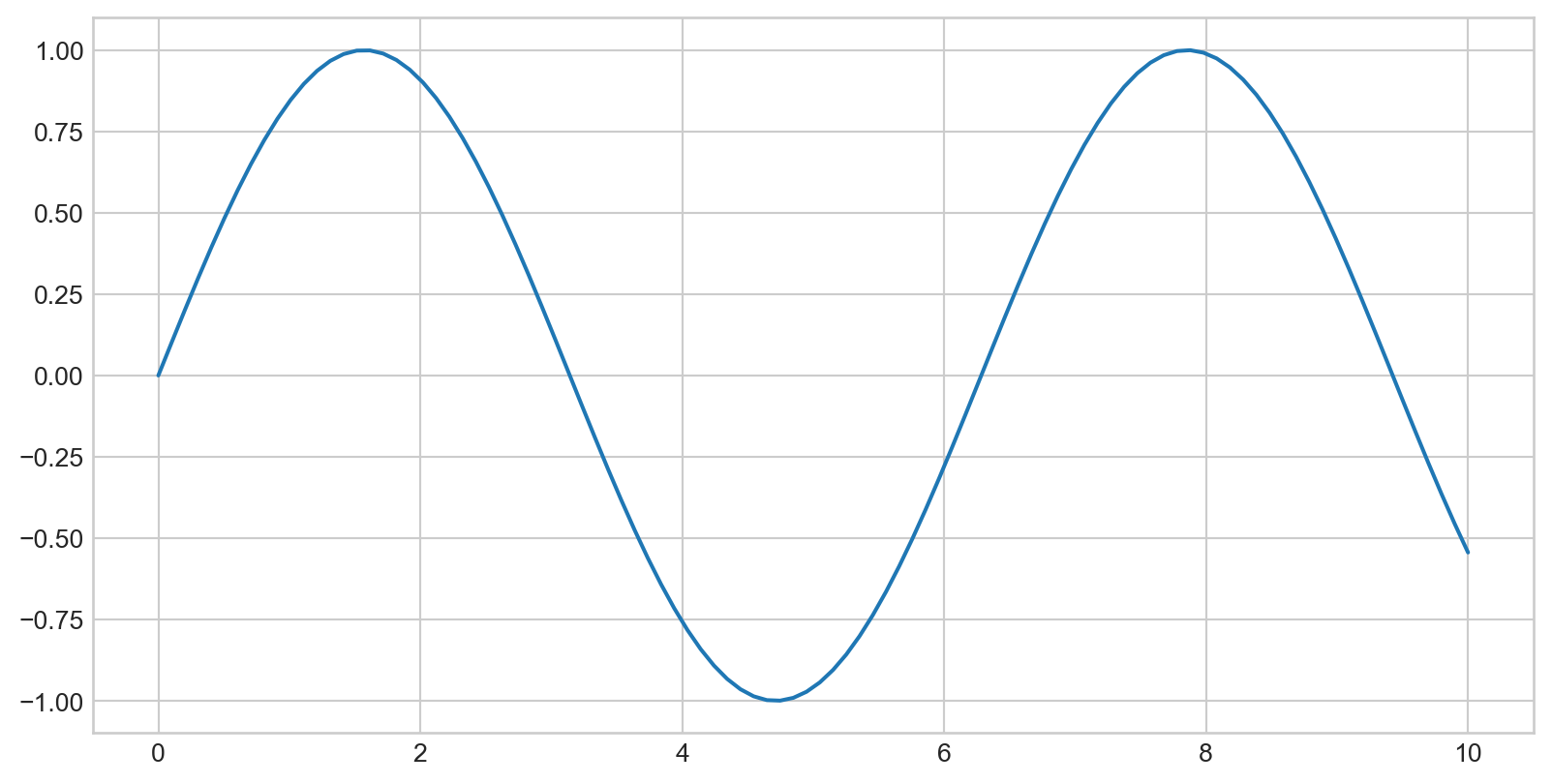
plt.show() at the end to display figures.plt is from import matplotlib.pyplot as pltplt.plot(x,y) for x and y axis
%matplotlib magic command to enable interactive plotting.plt.show() is not required.%matplotlib inline for static images or%matplotlib notebook for interactive plotsSave figures using fig.savefig():
{'eps': 'Encapsulated Postscript',
'jpg': 'Joint Photographic Experts Group',
'jpeg': 'Joint Photographic Experts Group',
'pdf': 'Portable Document Format',
'pgf': 'PGF code for LaTeX',
'png': 'Portable Network Graphics',
'ps': 'Postscript',
'raw': 'Raw RGBA bitmap',
'rgba': 'Raw RGBA bitmap',
'svg': 'Scalable Vector Graphics',
'svgz': 'Scalable Vector Graphics',
'tif': 'Tagged Image File Format',
'tiff': 'Tagged Image File Format',
'webp': 'WebP Image Format'}
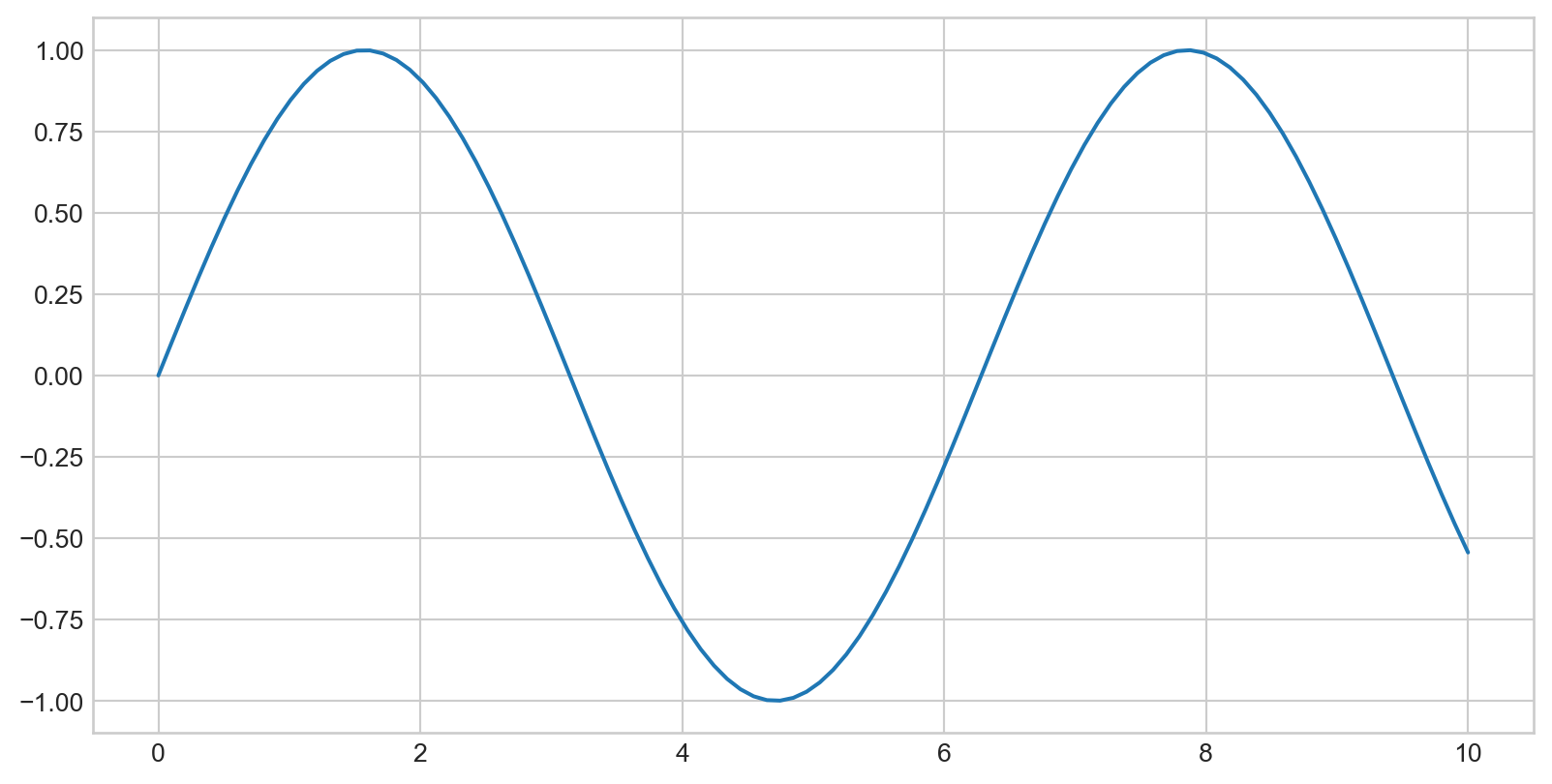
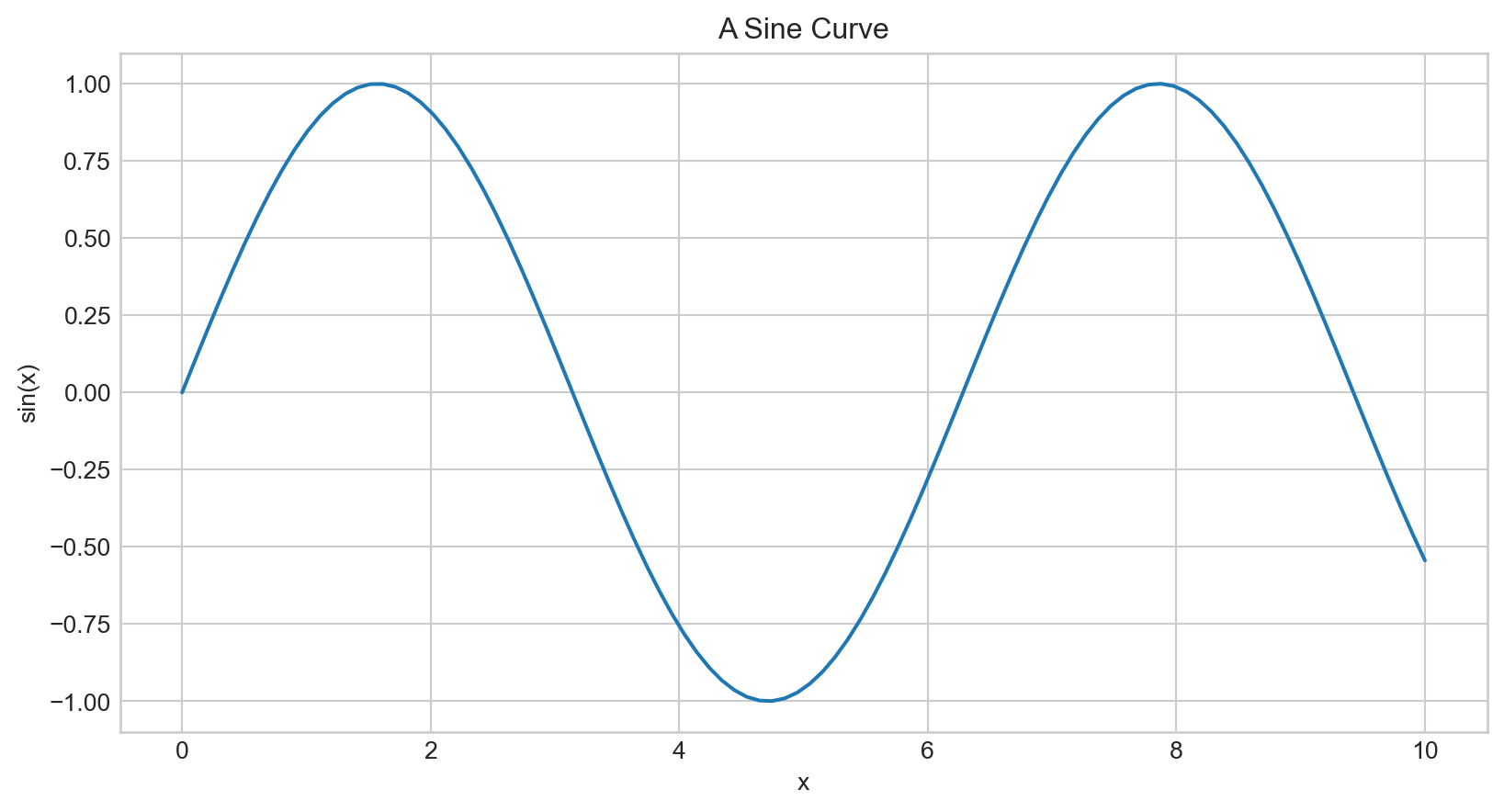
Plotting a sine curve with plt.plot(x,y), plt is from import matplotlib.pyplot as plt
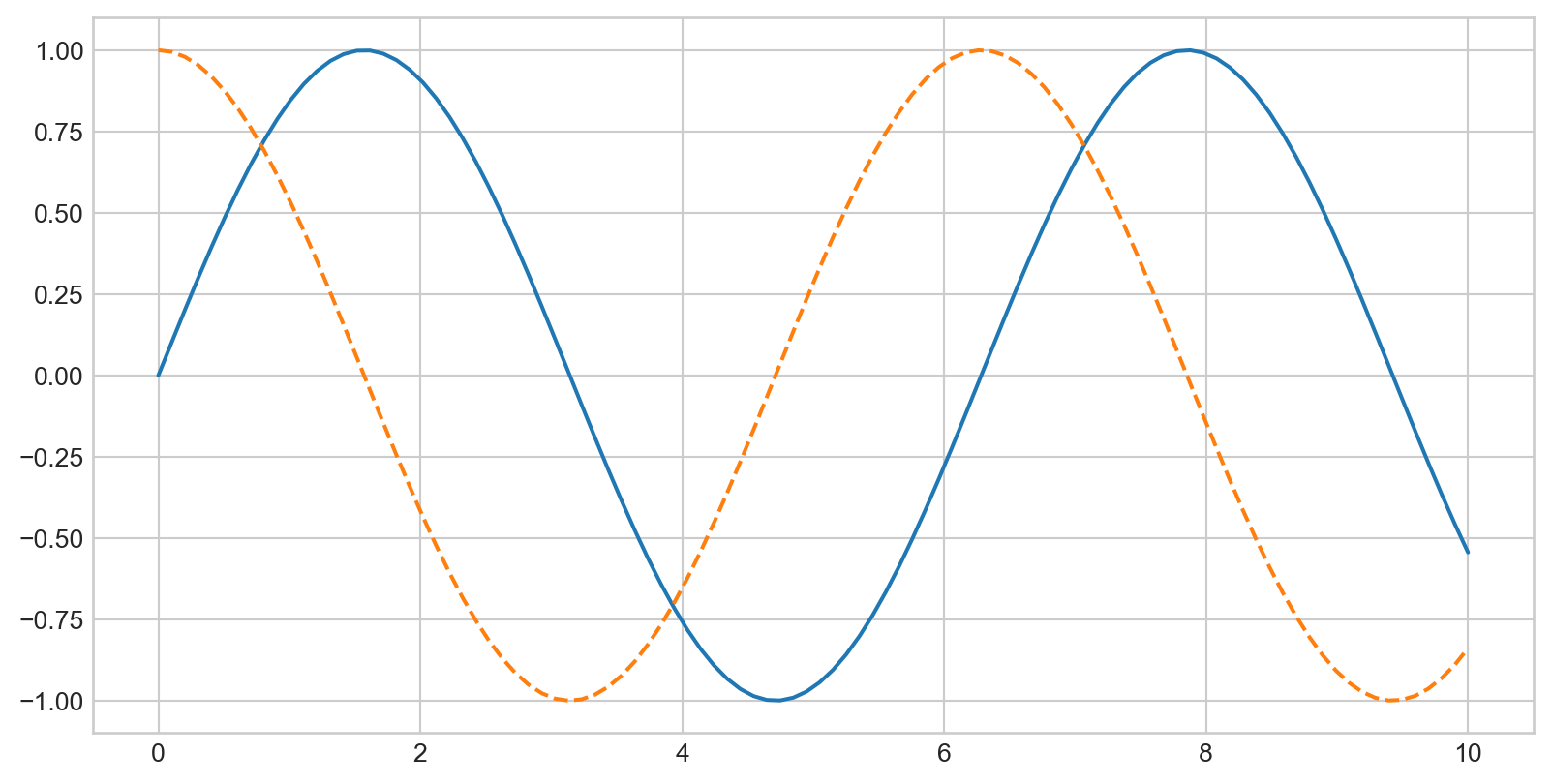
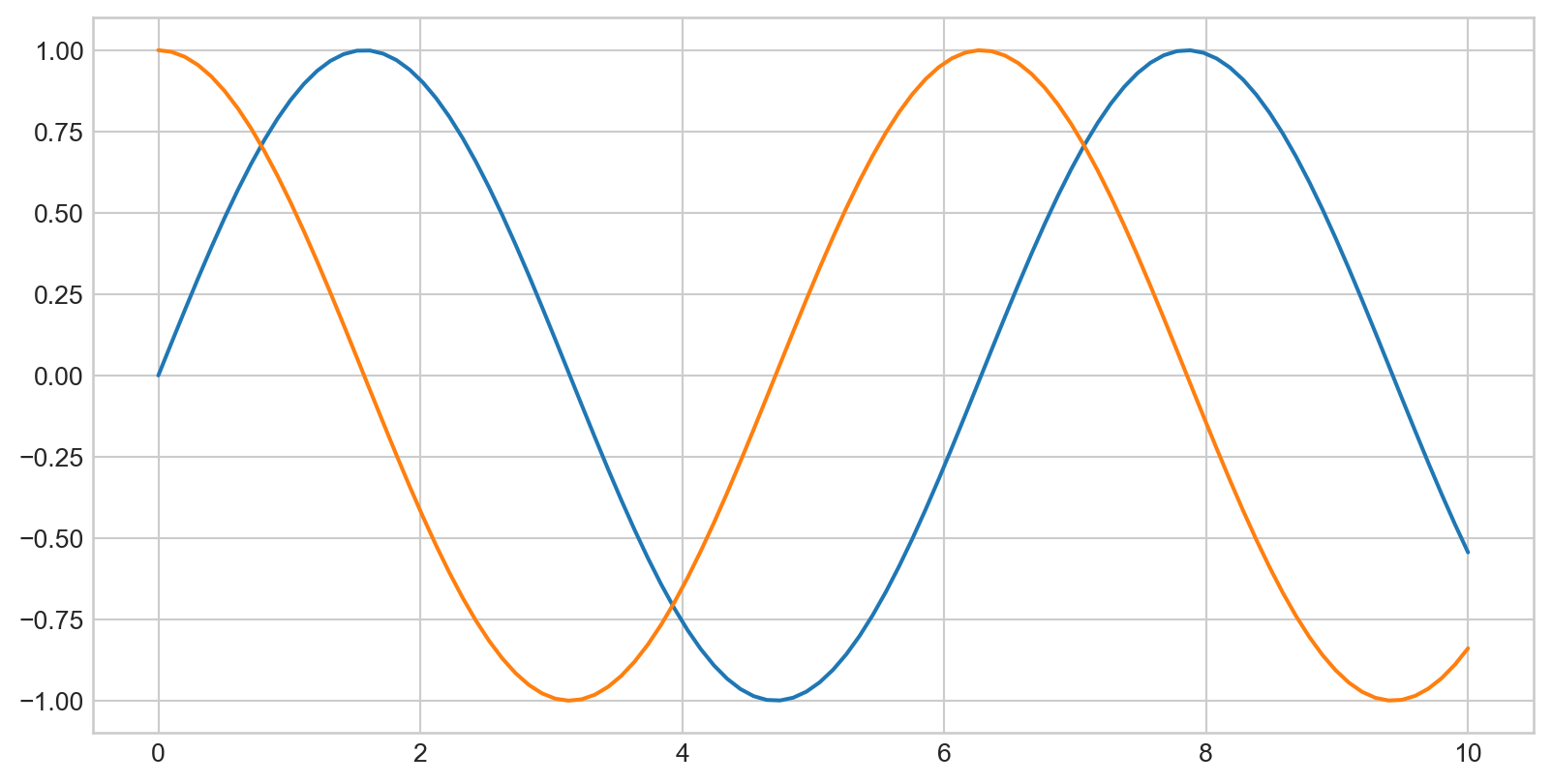
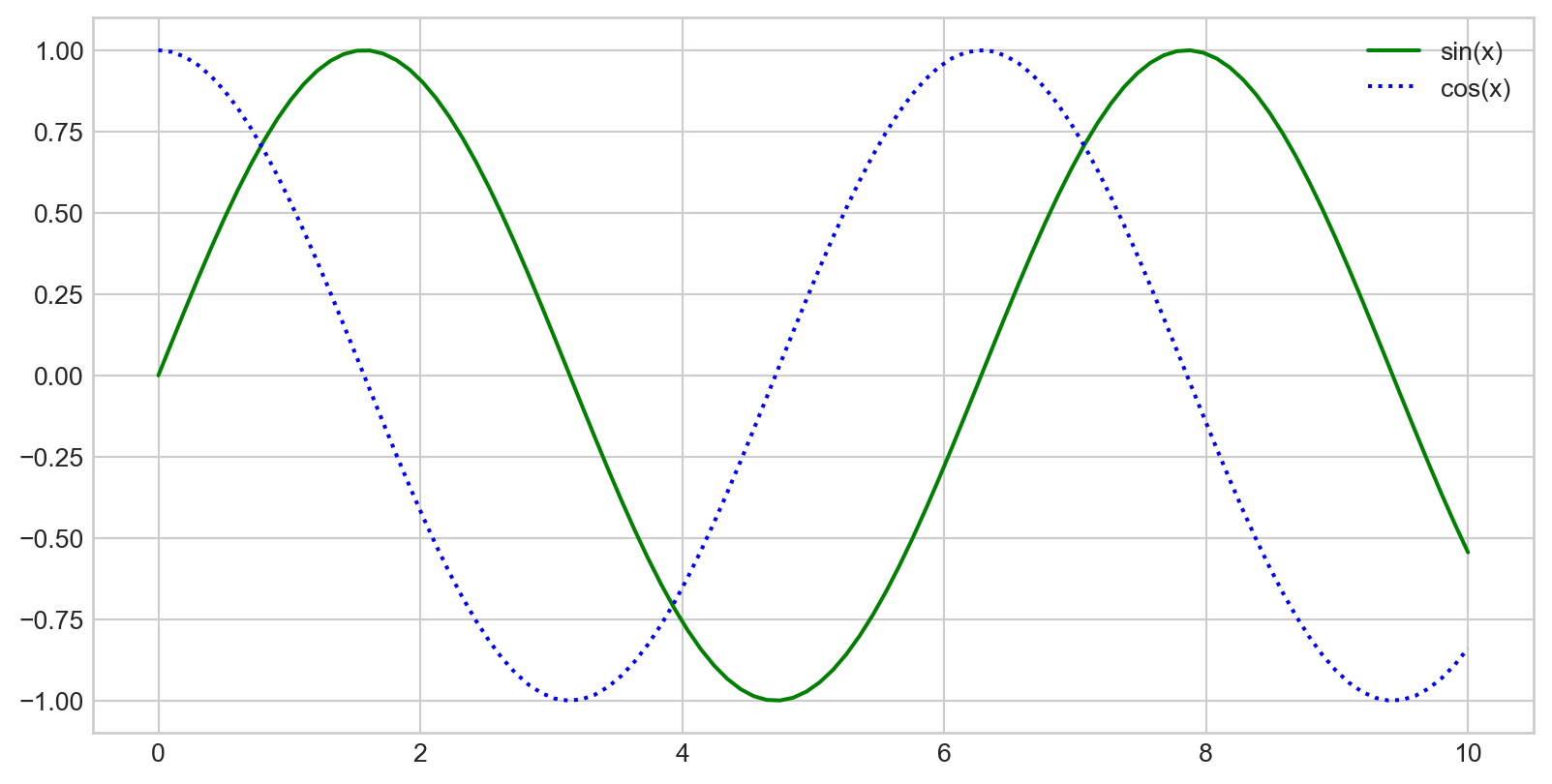
Call plt.plot multiple times to overlay lines:
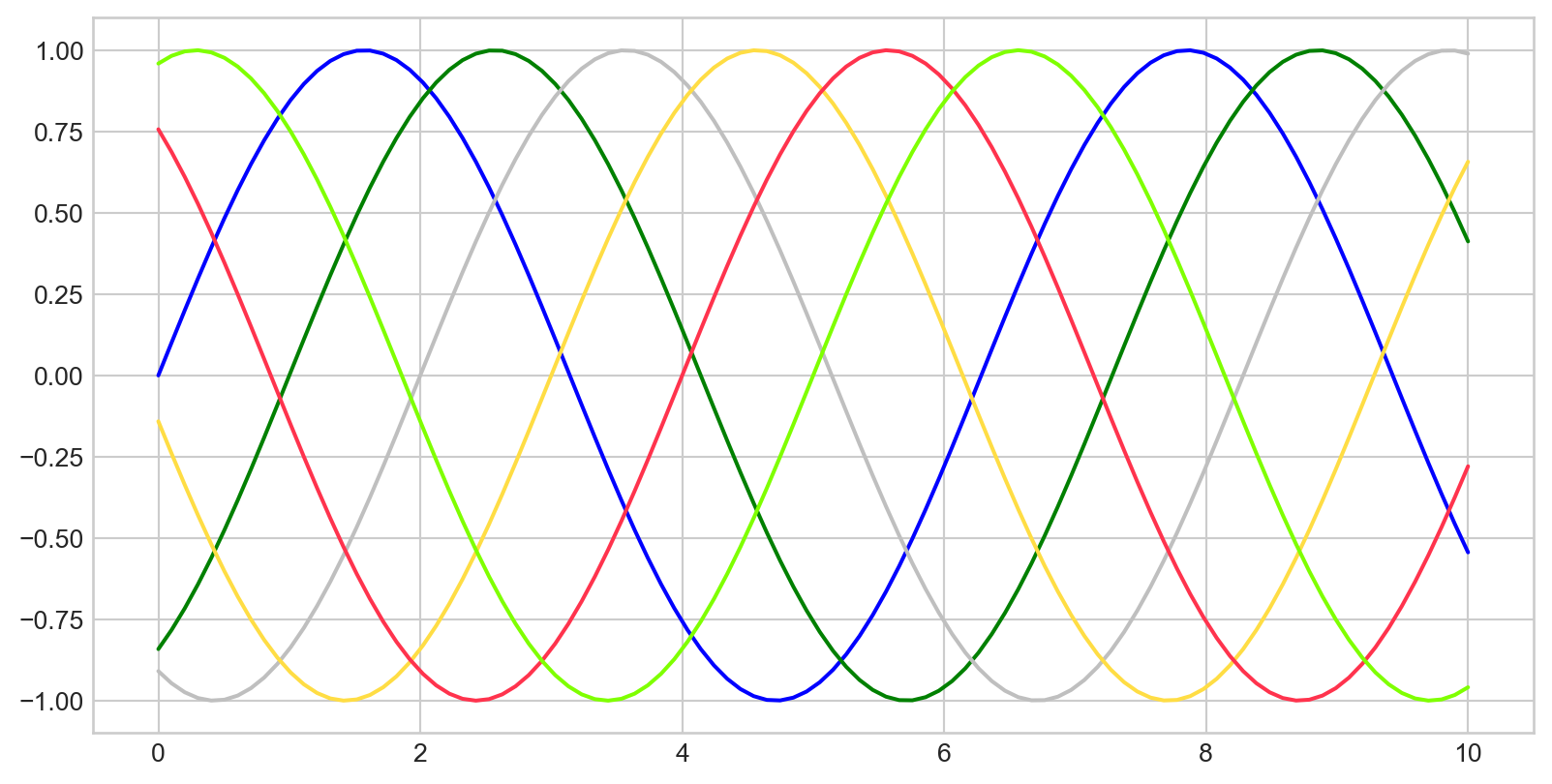
plt.plot() with color parameter
plt.plot(x, np.sin(x - 0), color='blue') # by name
plt.plot(x, np.sin(x - 1), color='g') # short code (r, g, b, c, m, y, k)
plt.plot(x, np.sin(x - 2), color='0.75') # grayscale
plt.plot(x, np.sin(x - 3), color='#FFDD44') # hex code
plt.plot(x, np.sin(x - 4), color=(1.0,0.2,0.3)) # RGB tuple
plt.plot(x, np.sin(x - 5), color='chartreuse') # HTML color name
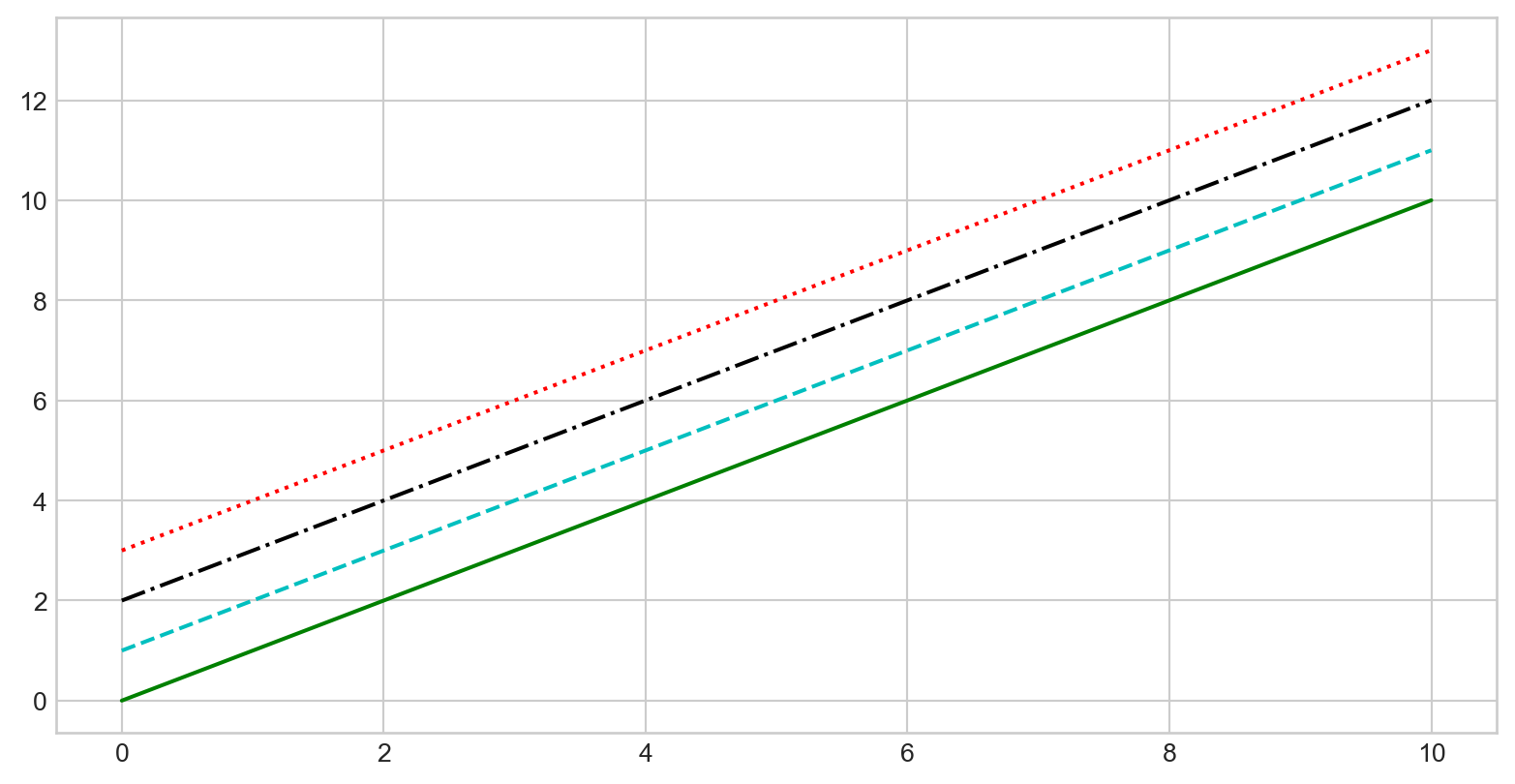
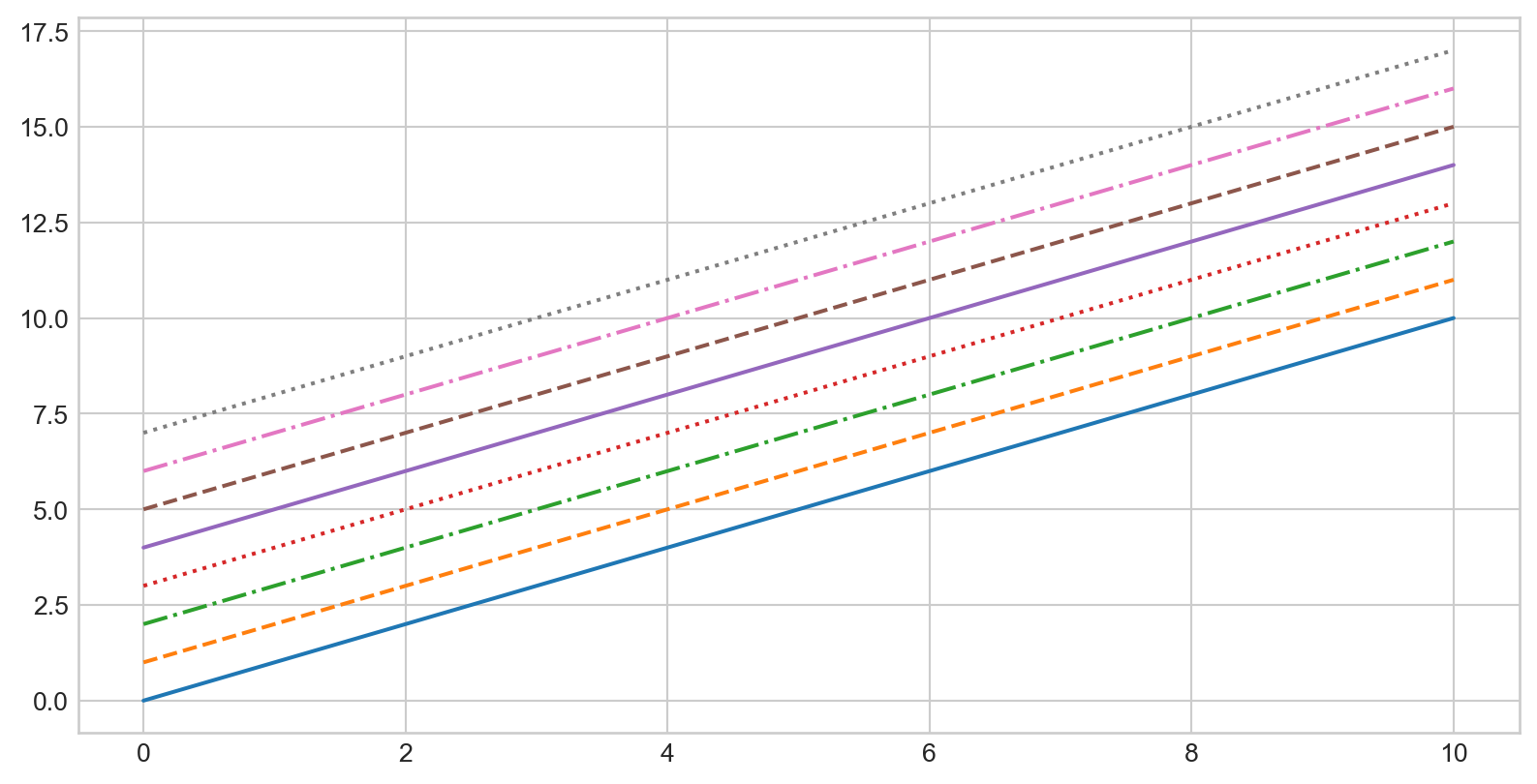
plt.plot() with linestyle parameter
plt.plot(x, x + 0, linestyle='solid')
plt.plot(x, x + 1, linestyle='dashed')
plt.plot(x, x + 2, linestyle='dashdot')
plt.plot(x, x + 3, linestyle='dotted')
# Short codes:
plt.plot(x, x + 4, linestyle='-') # solid
plt.plot(x, x + 5, linestyle='--') # dashed
plt.plot(x, x + 6, linestyle='-.') # dashdot
plt.plot(x, x + 7, linestyle=':') # dotted
plt.axis([xmin, xmax, ymin, ymax]), limits are arranged into a list
plt.title(), plt.xlabel(), plt.ylabel()
Add a legend for multiple lines with plt.plot() + label parameter and call plt.legend()
Setting:
Data: 空氣品質監測日平均值(一般污染物)
# https://data.moenv.gov.tw/dataset/detail/AQX_P_19
# https://drive.google.com/drive/folders/1OrMlB4hP8nnW_0bYwoHRO6DRXWNk1qvy?usp=sharing
!gdown '1P3qrYrynZhXDC13dVo5KhDXmld5OGZz1' --output 202310.csv
!gdown '1P1Kv1ZmPOYyi83DJKUIPoksM31vJJiS5' --output 202311.csv
!gdown '1P0mojOXgvVbXImnRTPQemm7dCkLDLKAC' --output 202312.csv
!gdown '1OwAf366l-iItXV4foJemw5QdMuD3JgMc' --output 202401.csvData
df202401 = pd.read_csv('202401.csv')
df202312 = pd.read_csv('202312.csv')
df202311 = pd.read_csv('202311.csv')
df202310 = pd.read_csv('202310.csv')
df_air = pd.concat([df202401,df202312,df202311,df202310],axis=0)
print(df_air.head()) "siteid" "sitename" "itemid" "itemname" "itemengname" "itemunit" \
0 80 關山 4 懸浮微粒 PM10 μg/m3
1 80 關山 5 氮氧化物 NOx ppb
2 80 關山 6 一氧化氮 NO ppb
3 80 關山 7 二氧化氮 NO2 ppb
4 80 關山 10 風速 WIND_SPEED m/sec
"monitordate" "concentration"
0 2024-01-01 33
1 2024-01-01 3.8
2 2024-01-01 0.5
3 2024-01-01 3.2
4 2024-01-01 2.2
Data Clean: Remove the quotes of column headers
new_headers = []
for header in df_air.columns: # data.columns is your list of headers
header = header.strip('"') # Remove the quotes off each header
new_headers.append(header) # Save the new strings without the quotes
df_air.columns = new_headers # Replace the old headers with the new list
print(df_air.head()) siteid sitename itemid itemname itemengname itemunit monitordate \
0 80 關山 4 懸浮微粒 PM10 μg/m3 2024-01-01
1 80 關山 5 氮氧化物 NOx ppb 2024-01-01
2 80 關山 6 一氧化氮 NO ppb 2024-01-01
3 80 關山 7 二氧化氮 NO2 ppb 2024-01-01
4 80 關山 10 風速 WIND_SPEED m/sec 2024-01-01
concentration
0 33
1 3.8
2 0.5
3 3.2
4 2.2
Data Clean: Data type
pd.to_numeric(List or Series, errors={‘ignore’, ‘raise’, ‘coerce’})
Data Clean: Data type
pd.to_datetime(List or Series, errors={‘ignore’, ‘raise’, ‘coerce’},format=)
請試著呈現林口測站在2024/1/1~2024/1/15的PM2.5濃度
Hint:
pd.to_datetime(List or Series, errors={‘ignore’, ‘raise’, ‘coerce’},format=)df.sort_values(by=column) (df can be any DataFrame) siteid sitename itemid itemname itemengname itemunit monitordate \
978 9 林口 33 細懸浮微粒 PM2.5 μg/m3 2024-01-01
1262 9 林口 33 細懸浮微粒 PM2.5 μg/m3 2024-01-02
3105 9 林口 33 細懸浮微粒 PM2.5 μg/m3 2024-01-03
3337 9 林口 33 細懸浮微粒 PM2.5 μg/m3 2024-01-04
4521 9 林口 33 細懸浮微粒 PM2.5 μg/m3 2024-01-05
5502 9 林口 33 細懸浮微粒 PM2.5 μg/m3 2024-01-06
7452 9 林口 33 細懸浮微粒 PM2.5 μg/m3 2024-01-07
7901 9 林口 33 細懸浮微粒 PM2.5 μg/m3 2024-01-08
8853 9 林口 33 細懸浮微粒 PM2.5 μg/m3 2024-01-09
9946 9 林口 33 細懸浮微粒 PM2.5 μg/m3 2024-01-10
11105 9 林口 33 細懸浮微粒 PM2.5 μg/m3 2024-01-11
12241 9 林口 33 細懸浮微粒 PM2.5 μg/m3 2024-01-12
13228 9 林口 33 細懸浮微粒 PM2.5 μg/m3 2024-01-13
15186 9 林口 33 細懸浮微粒 PM2.5 μg/m3 2024-01-14
15416 9 林口 33 細懸浮微粒 PM2.5 μg/m3 2024-01-15
concentration DateTime
978 24.0 2024-01-01
1262 13.0 2024-01-02
3105 15.1 2024-01-03
3337 15.9 2024-01-04
4521 23.5 2024-01-05
5502 20.6 2024-01-06
7452 20.2 2024-01-07
7901 12.6 2024-01-08
8853 5.8 2024-01-09
9946 27.3 2024-01-10
11105 19.7 2024-01-11
12241 10.1 2024-01-12
13228 4.5 2024-01-13
15186 6.3 2024-01-14
15416 19.2 2024-01-15
請試著呈現林口測站在2024/1/1~2024/1/15的PM2.5濃度,要呈現figure legend,也要呈現x y 軸的名字
Ref:
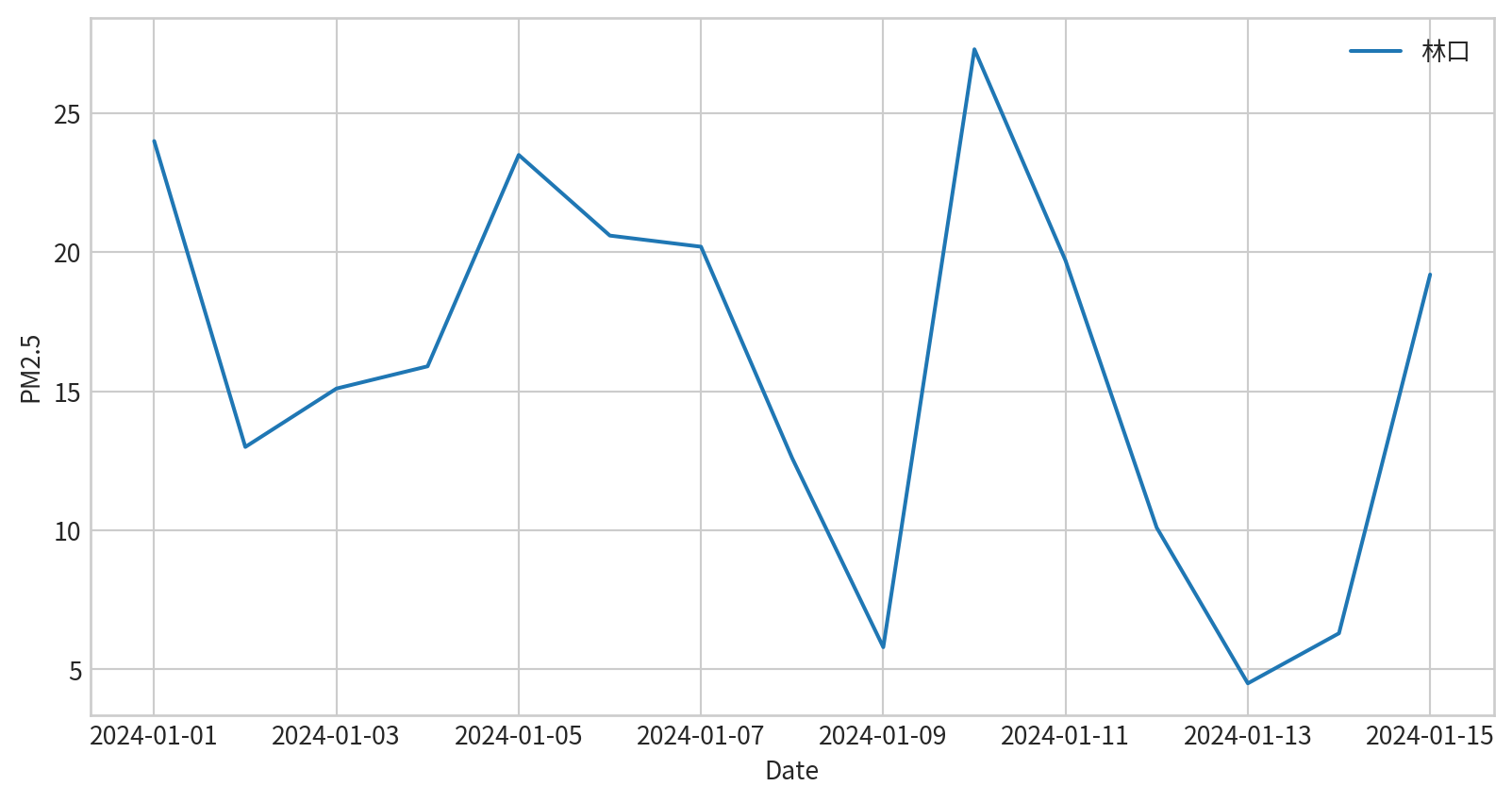
sns.lineplot(x,y), x and y are data for each axis
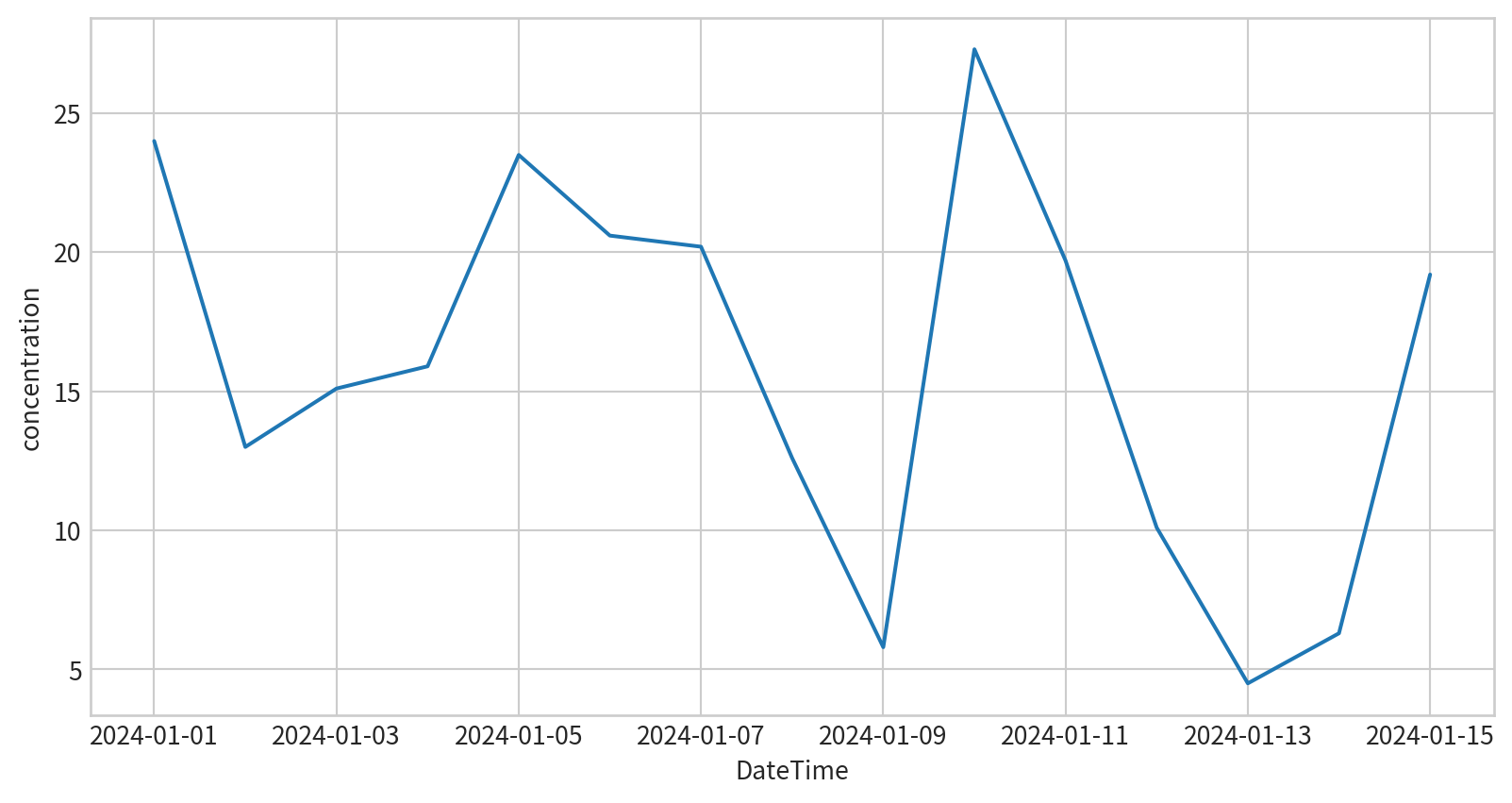
sns.lineplot(data, x, y), x and y are column names for each axis
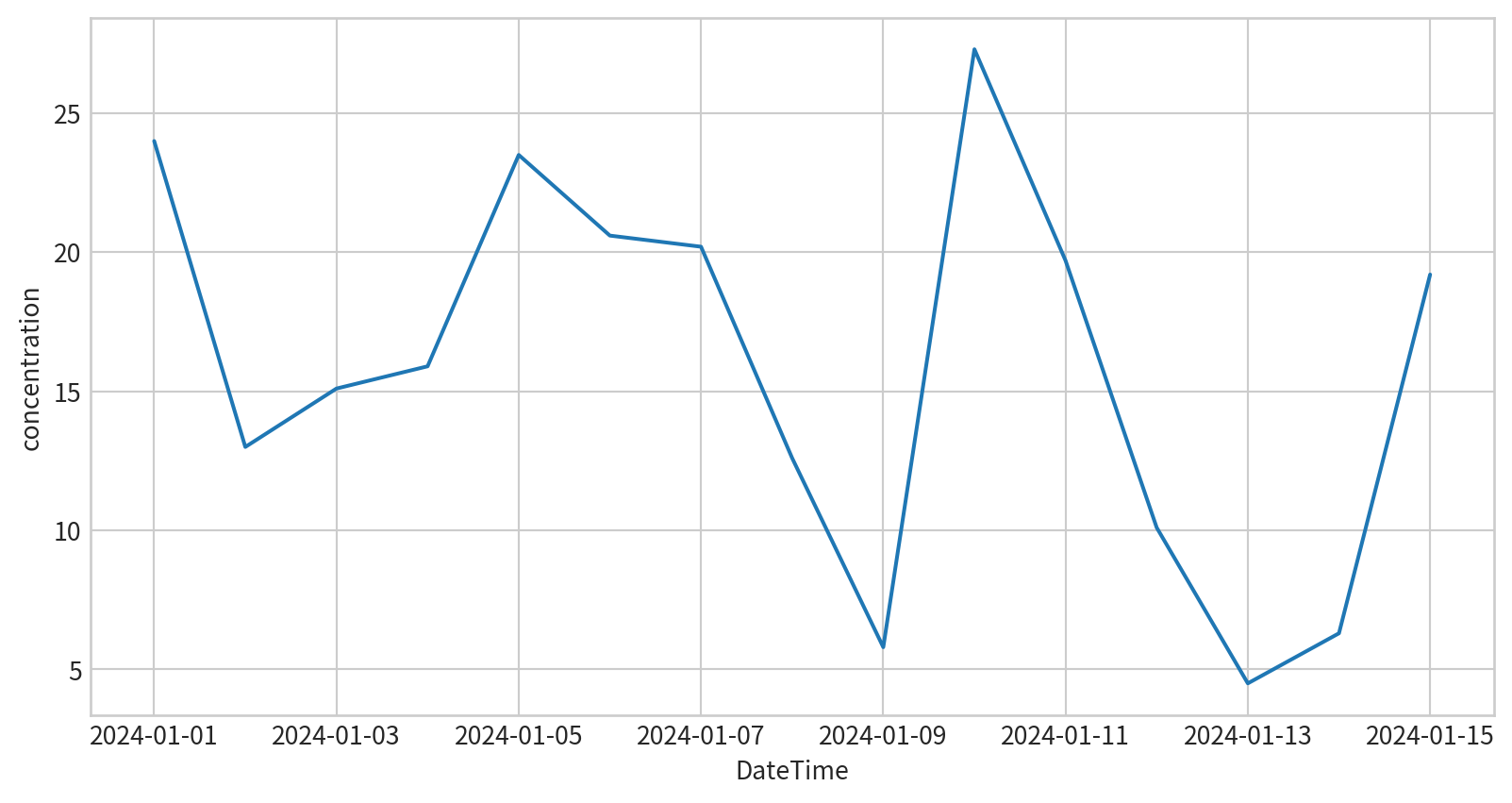
plt.plot()plt.plot(x,y,marker,color), marker for shapes, color for color
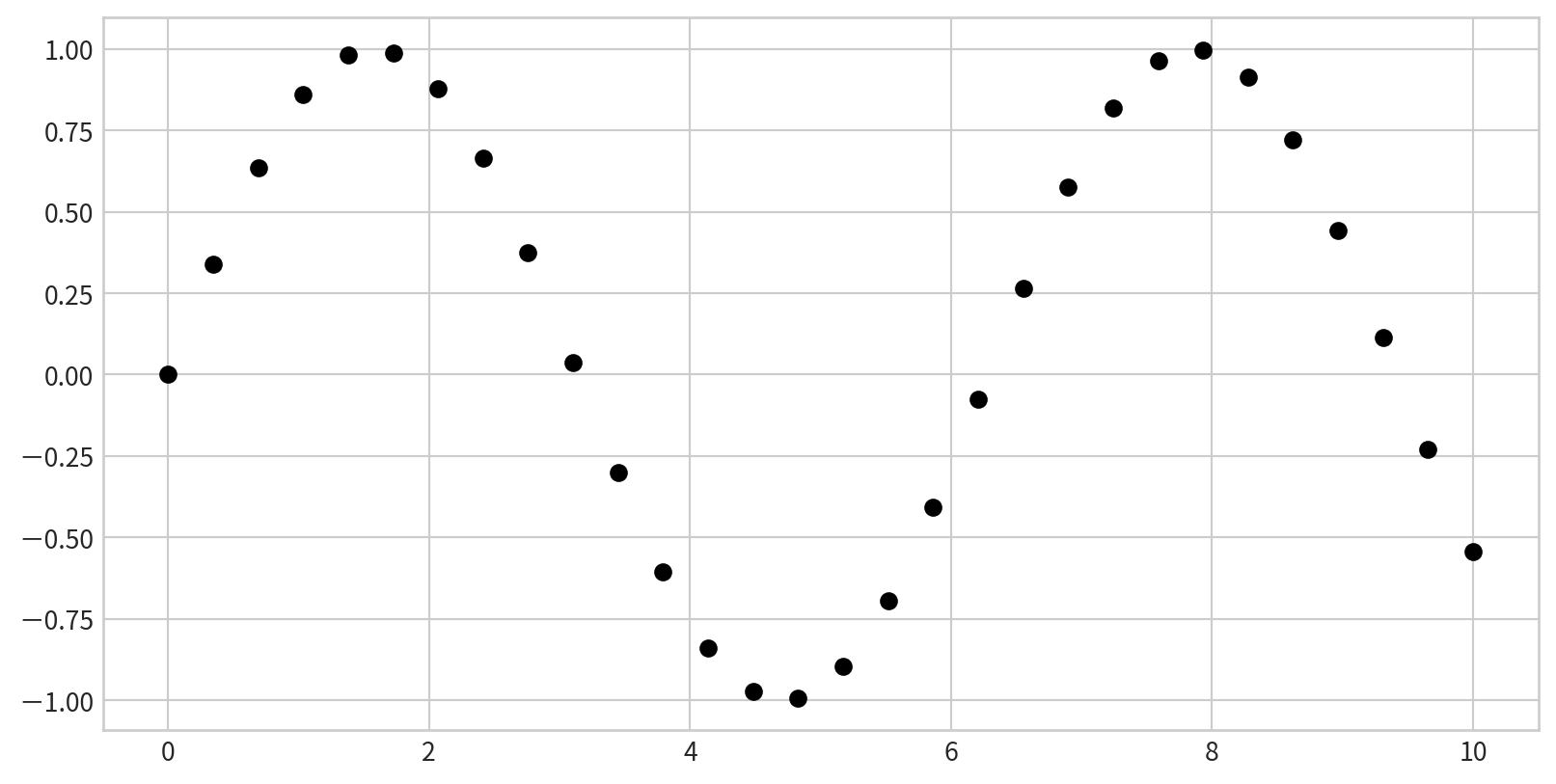
'o', '.', ',', 'x', '+', 'v', '^', '', 's', 'd' …
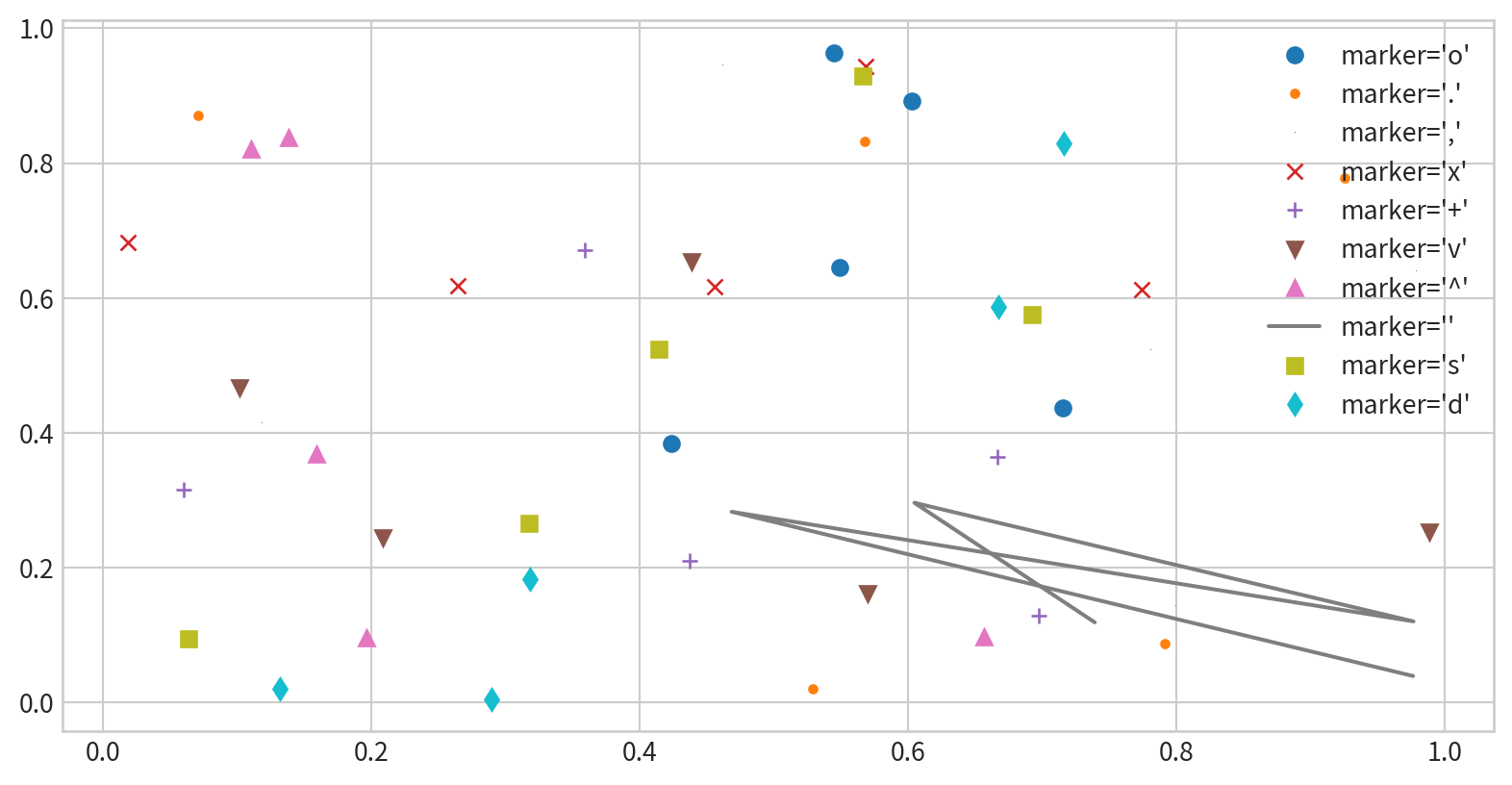
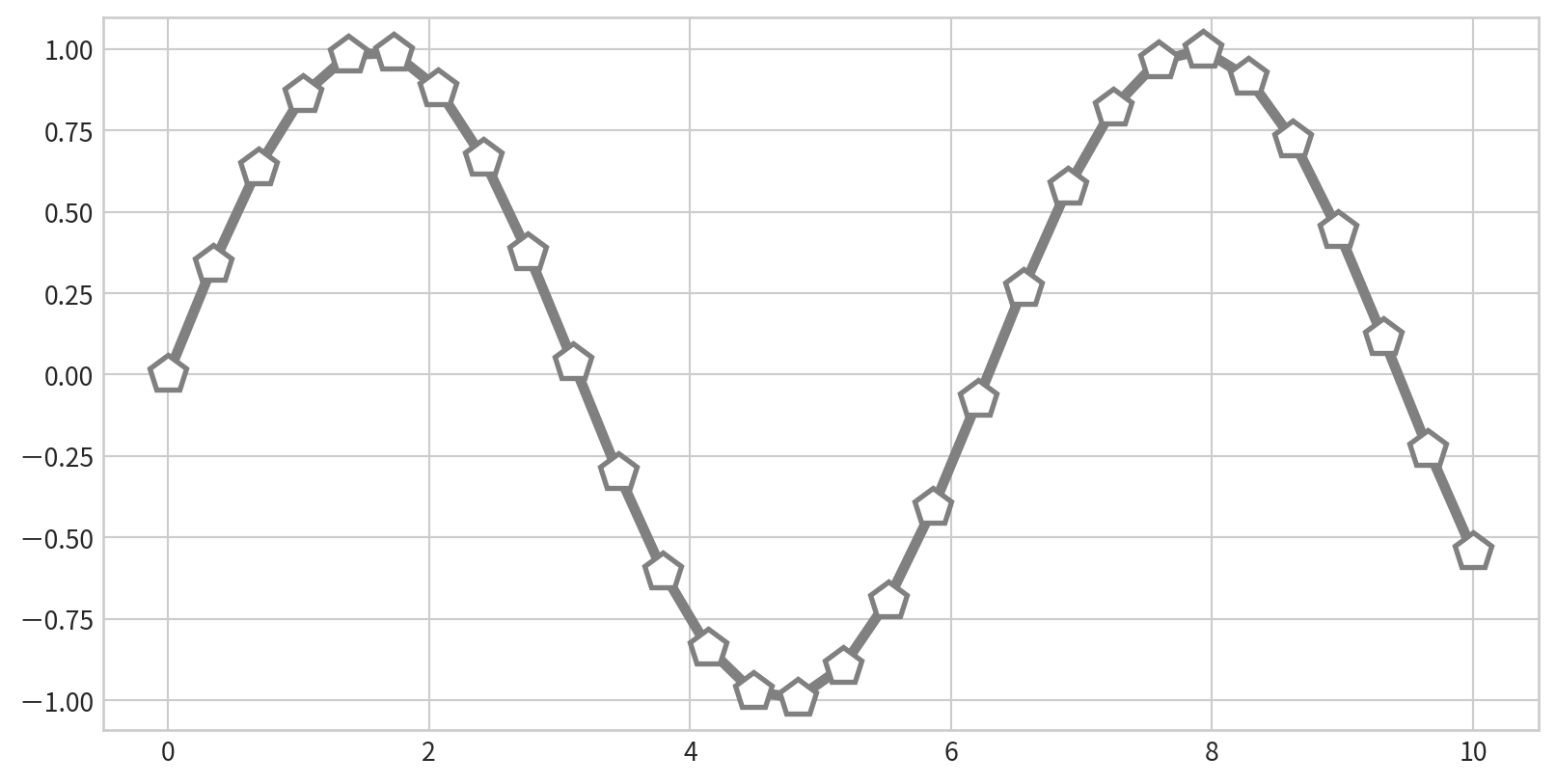
Combine marker and line styles for more complex plots
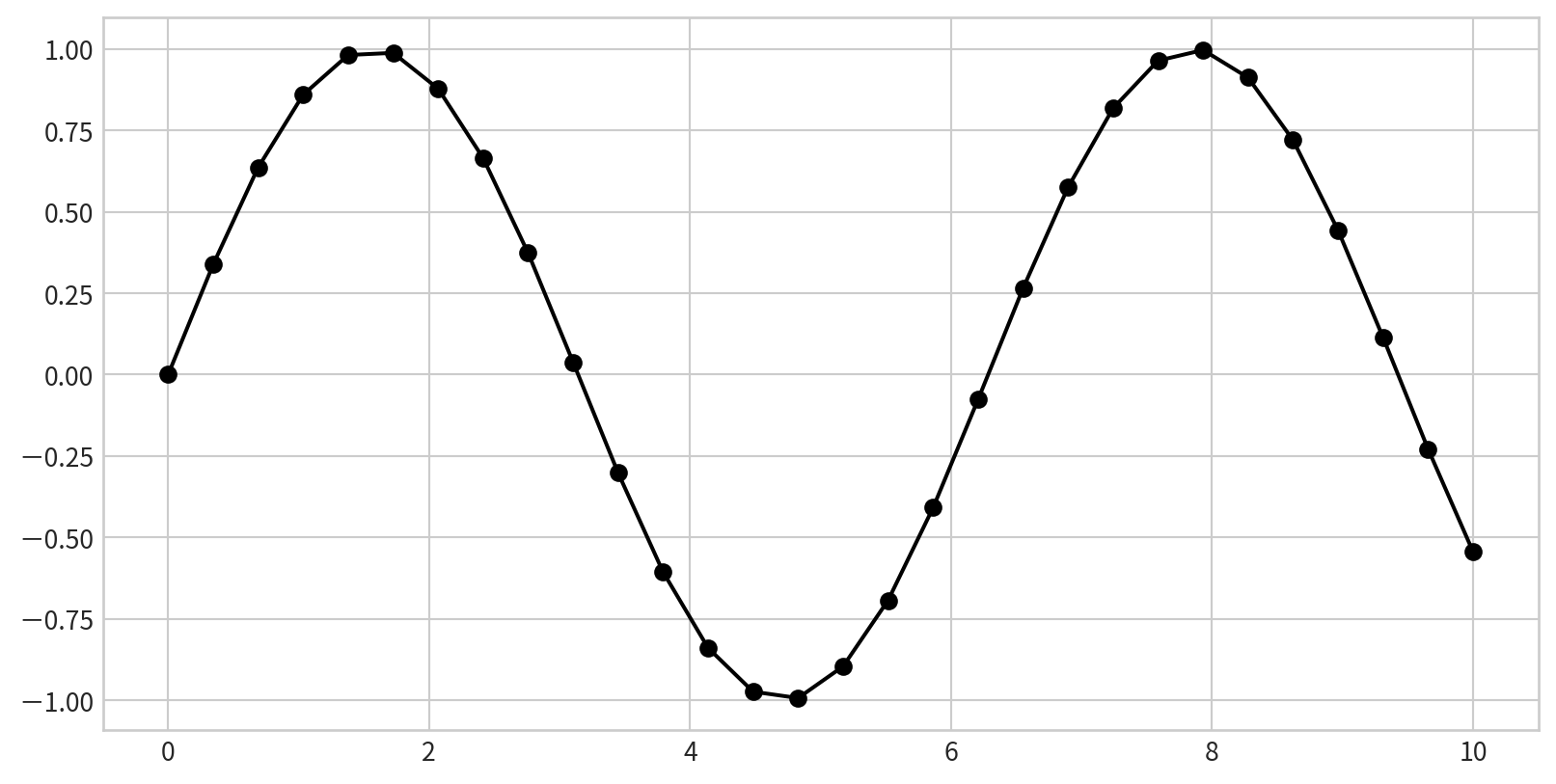
Customize markers and lines with additional arguments
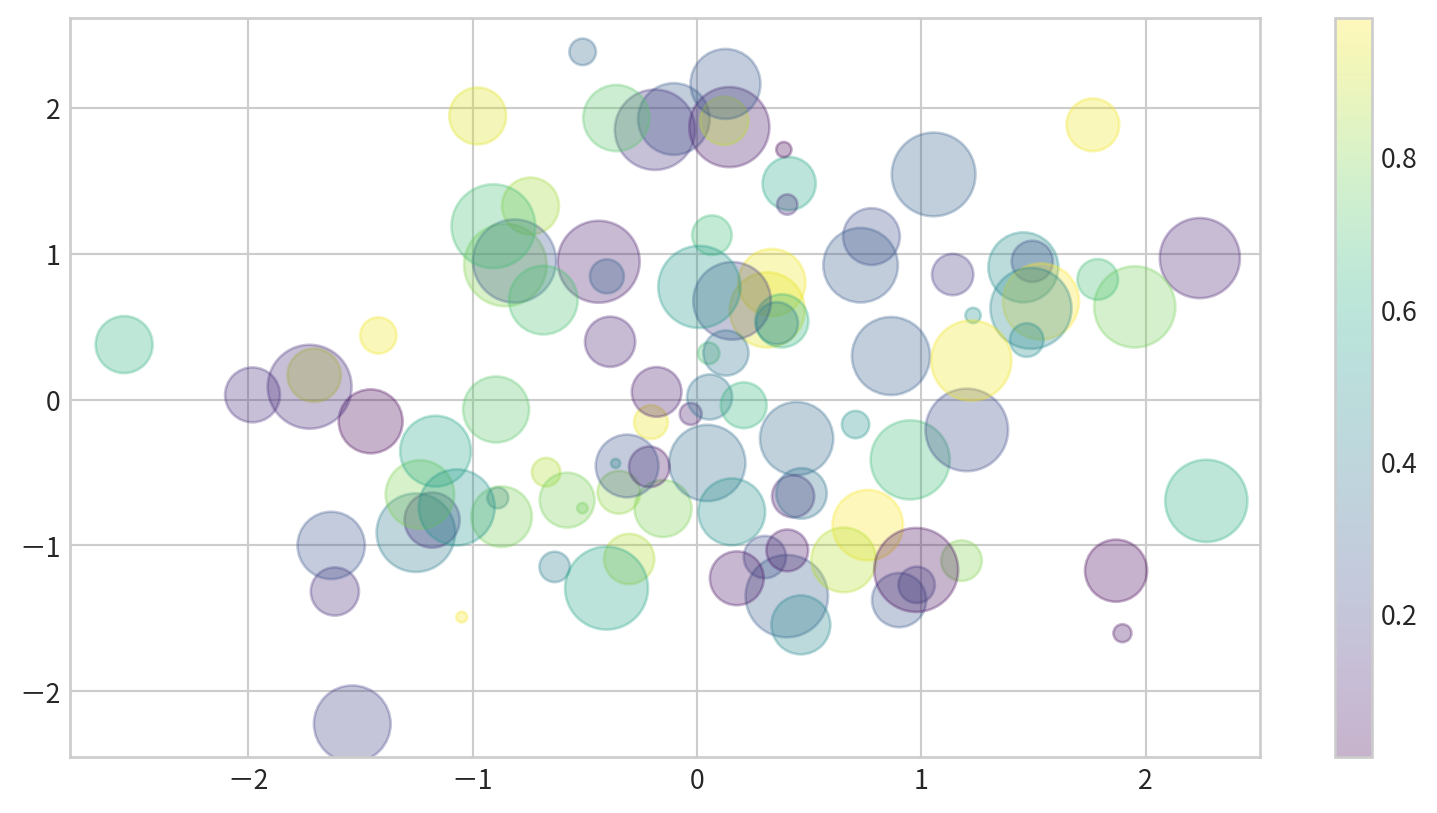
plt.scatterplt.scatter(x, y) allowing individual control over each point’s size, color, and other properties.
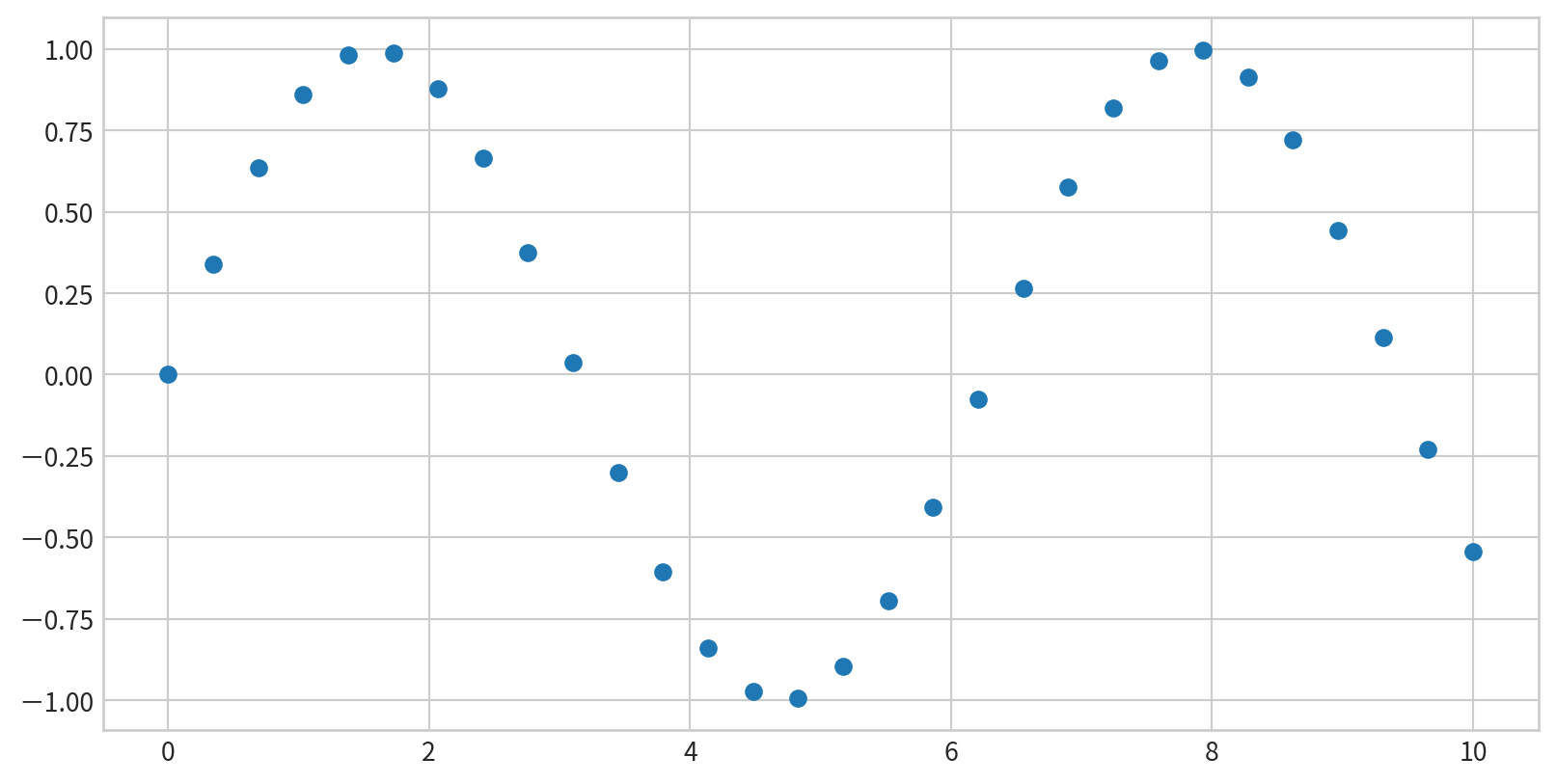
Data:
Parameters:
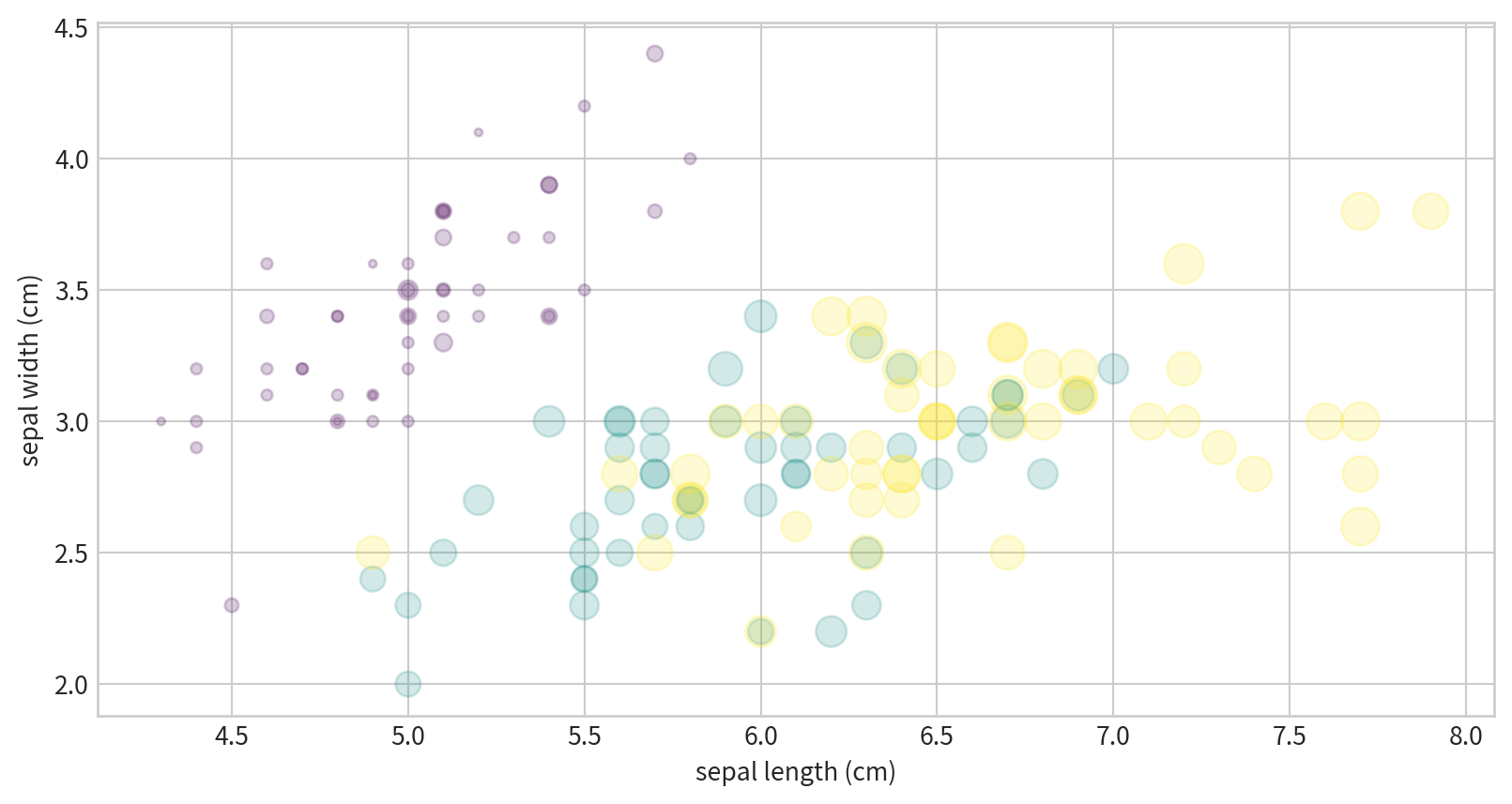
c: color for each points sizealpha transparencycmap colormap (more details later)Iris dataset, visualizing four features at once.
Data:
# !pip3 install scikit-learn
from sklearn.datasets import load_iris
iris = load_iris()
features = iris.data.T
print(features)[[5.1 4.9 4.7 4.6 5. 5.4 4.6 5. 4.4 4.9 5.4 4.8 4.8 4.3 5.8 5.7 5.4 5.1
5.7 5.1 5.4 5.1 4.6 5.1 4.8 5. 5. 5.2 5.2 4.7 4.8 5.4 5.2 5.5 4.9 5.
5.5 4.9 4.4 5.1 5. 4.5 4.4 5. 5.1 4.8 5.1 4.6 5.3 5. 7. 6.4 6.9 5.5
6.5 5.7 6.3 4.9 6.6 5.2 5. 5.9 6. 6.1 5.6 6.7 5.6 5.8 6.2 5.6 5.9 6.1
6.3 6.1 6.4 6.6 6.8 6.7 6. 5.7 5.5 5.5 5.8 6. 5.4 6. 6.7 6.3 5.6 5.5
5.5 6.1 5.8 5. 5.6 5.7 5.7 6.2 5.1 5.7 6.3 5.8 7.1 6.3 6.5 7.6 4.9 7.3
6.7 7.2 6.5 6.4 6.8 5.7 5.8 6.4 6.5 7.7 7.7 6. 6.9 5.6 7.7 6.3 6.7 7.2
6.2 6.1 6.4 7.2 7.4 7.9 6.4 6.3 6.1 7.7 6.3 6.4 6. 6.9 6.7 6.9 5.8 6.8
6.7 6.7 6.3 6.5 6.2 5.9]
[3.5 3. 3.2 3.1 3.6 3.9 3.4 3.4 2.9 3.1 3.7 3.4 3. 3. 4. 4.4 3.9 3.5
3.8 3.8 3.4 3.7 3.6 3.3 3.4 3. 3.4 3.5 3.4 3.2 3.1 3.4 4.1 4.2 3.1 3.2
3.5 3.6 3. 3.4 3.5 2.3 3.2 3.5 3.8 3. 3.8 3.2 3.7 3.3 3.2 3.2 3.1 2.3
2.8 2.8 3.3 2.4 2.9 2.7 2. 3. 2.2 2.9 2.9 3.1 3. 2.7 2.2 2.5 3.2 2.8
2.5 2.8 2.9 3. 2.8 3. 2.9 2.6 2.4 2.4 2.7 2.7 3. 3.4 3.1 2.3 3. 2.5
2.6 3. 2.6 2.3 2.7 3. 2.9 2.9 2.5 2.8 3.3 2.7 3. 2.9 3. 3. 2.5 2.9
2.5 3.6 3.2 2.7 3. 2.5 2.8 3.2 3. 3.8 2.6 2.2 3.2 2.8 2.8 2.7 3.3 3.2
2.8 3. 2.8 3. 2.8 3.8 2.8 2.8 2.6 3. 3.4 3.1 3. 3.1 3.1 3.1 2.7 3.2
3.3 3. 2.5 3. 3.4 3. ]
[1.4 1.4 1.3 1.5 1.4 1.7 1.4 1.5 1.4 1.5 1.5 1.6 1.4 1.1 1.2 1.5 1.3 1.4
1.7 1.5 1.7 1.5 1. 1.7 1.9 1.6 1.6 1.5 1.4 1.6 1.6 1.5 1.5 1.4 1.5 1.2
1.3 1.4 1.3 1.5 1.3 1.3 1.3 1.6 1.9 1.4 1.6 1.4 1.5 1.4 4.7 4.5 4.9 4.
4.6 4.5 4.7 3.3 4.6 3.9 3.5 4.2 4. 4.7 3.6 4.4 4.5 4.1 4.5 3.9 4.8 4.
4.9 4.7 4.3 4.4 4.8 5. 4.5 3.5 3.8 3.7 3.9 5.1 4.5 4.5 4.7 4.4 4.1 4.
4.4 4.6 4. 3.3 4.2 4.2 4.2 4.3 3. 4.1 6. 5.1 5.9 5.6 5.8 6.6 4.5 6.3
5.8 6.1 5.1 5.3 5.5 5. 5.1 5.3 5.5 6.7 6.9 5. 5.7 4.9 6.7 4.9 5.7 6.
4.8 4.9 5.6 5.8 6.1 6.4 5.6 5.1 5.6 6.1 5.6 5.5 4.8 5.4 5.6 5.1 5.1 5.9
5.7 5.2 5. 5.2 5.4 5.1]
[0.2 0.2 0.2 0.2 0.2 0.4 0.3 0.2 0.2 0.1 0.2 0.2 0.1 0.1 0.2 0.4 0.4 0.3
0.3 0.3 0.2 0.4 0.2 0.5 0.2 0.2 0.4 0.2 0.2 0.2 0.2 0.4 0.1 0.2 0.2 0.2
0.2 0.1 0.2 0.2 0.3 0.3 0.2 0.6 0.4 0.3 0.2 0.2 0.2 0.2 1.4 1.5 1.5 1.3
1.5 1.3 1.6 1. 1.3 1.4 1. 1.5 1. 1.4 1.3 1.4 1.5 1. 1.5 1.1 1.8 1.3
1.5 1.2 1.3 1.4 1.4 1.7 1.5 1. 1.1 1. 1.2 1.6 1.5 1.6 1.5 1.3 1.3 1.3
1.2 1.4 1.2 1. 1.3 1.2 1.3 1.3 1.1 1.3 2.5 1.9 2.1 1.8 2.2 2.1 1.7 1.8
1.8 2.5 2. 1.9 2.1 2. 2.4 2.3 1.8 2.2 2.3 1.5 2.3 2. 2. 1.8 2.1 1.8
1.8 1.8 2.1 1.6 1.9 2. 2.2 1.5 1.4 2.3 2.4 1.8 1.8 2.1 2.4 2.3 1.9 2.3
2.5 2.3 1.9 2. 2.3 1.8]]
x/y positions, size, and color all encode different data dimensions.
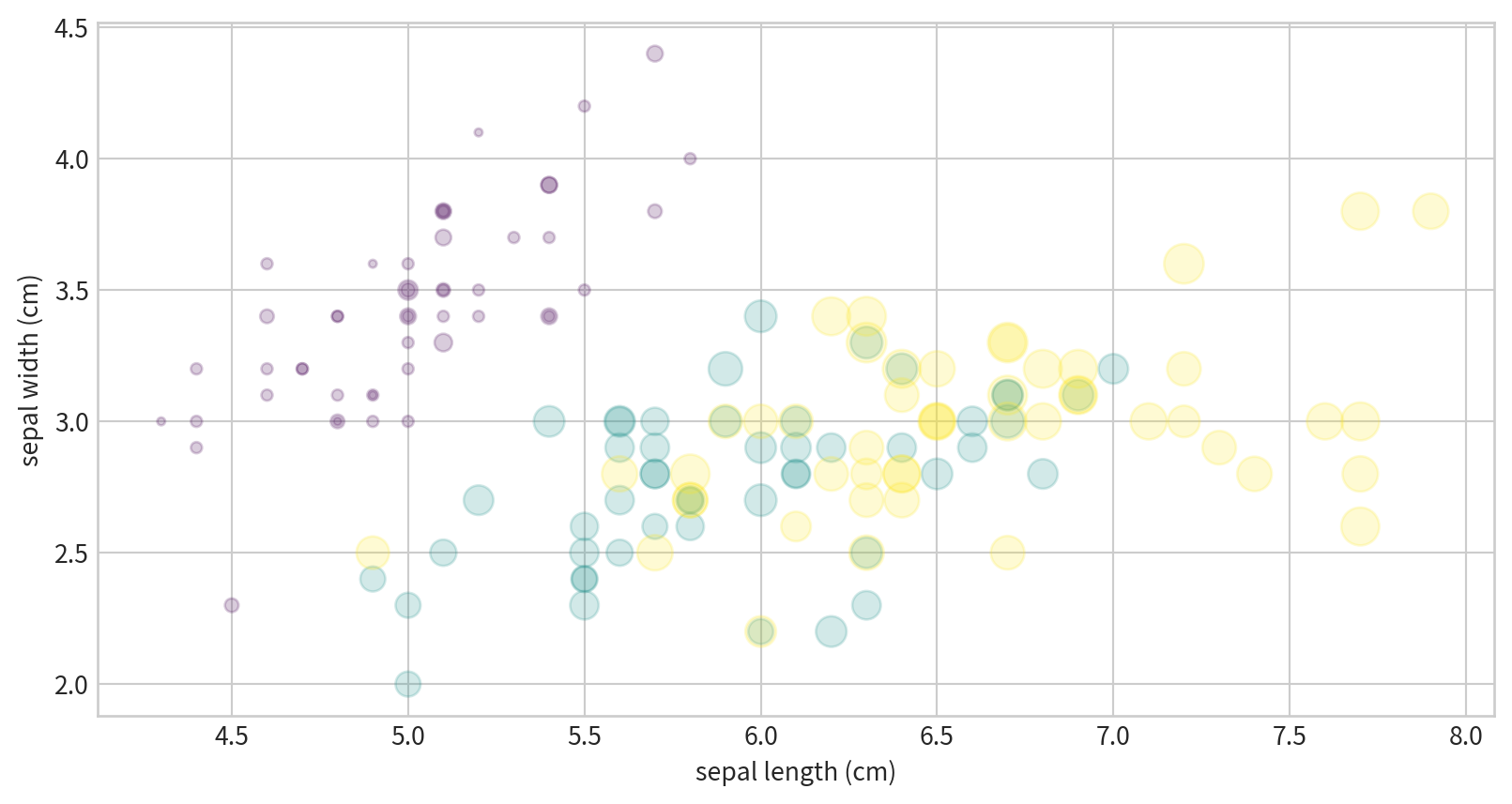
Text(0, 0.5, 'sepal width (cm)')

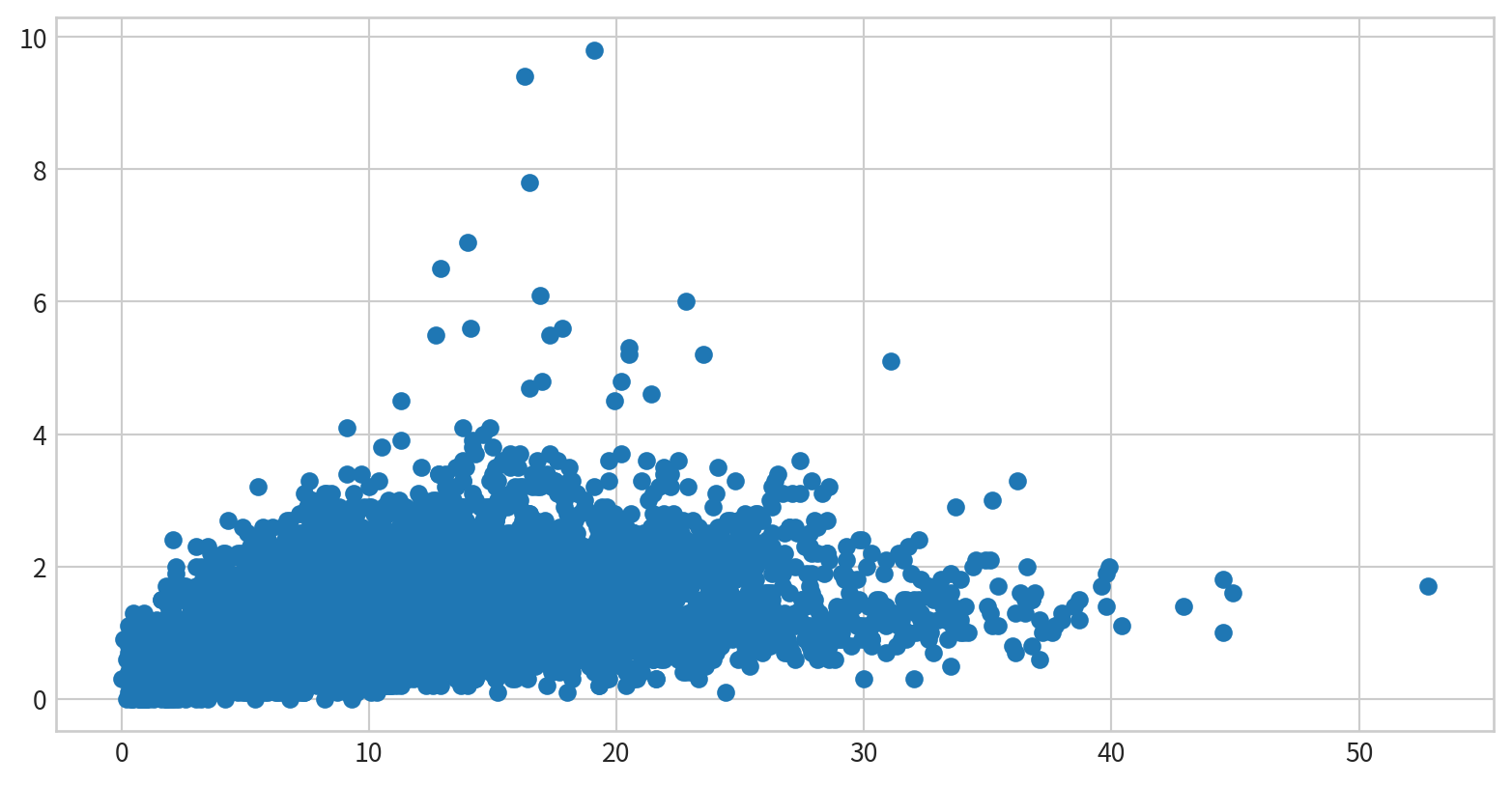
plot vs. scatter: Efficiency Noteplt.plot and plt.scatter work well.plt.plot is more efficient because all points are rendered with the same style.plt.scatter is less efficient for large datasets since it allows per-point customization and must render each point individually.試著看看空氣污染資料中,NO2濃度與SO2濃度有沒有相關?
Hint: multiple records on the same date - df.groupby()
Ref:
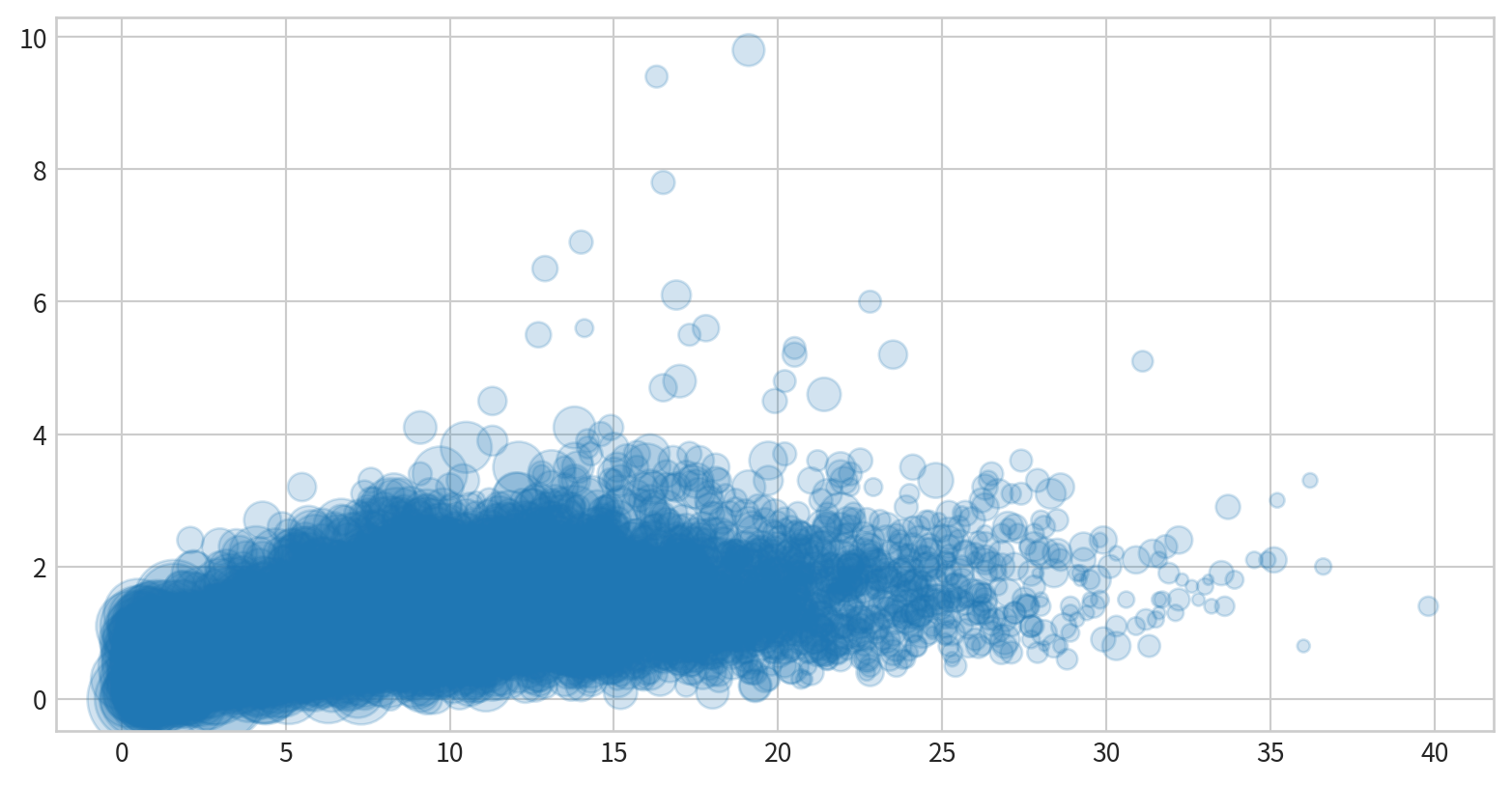
使用泡泡圖呈現NO2與SO2的關係,並用風速(WIND_SPEED)當作泡泡大小,觀察這些資料是否有相關
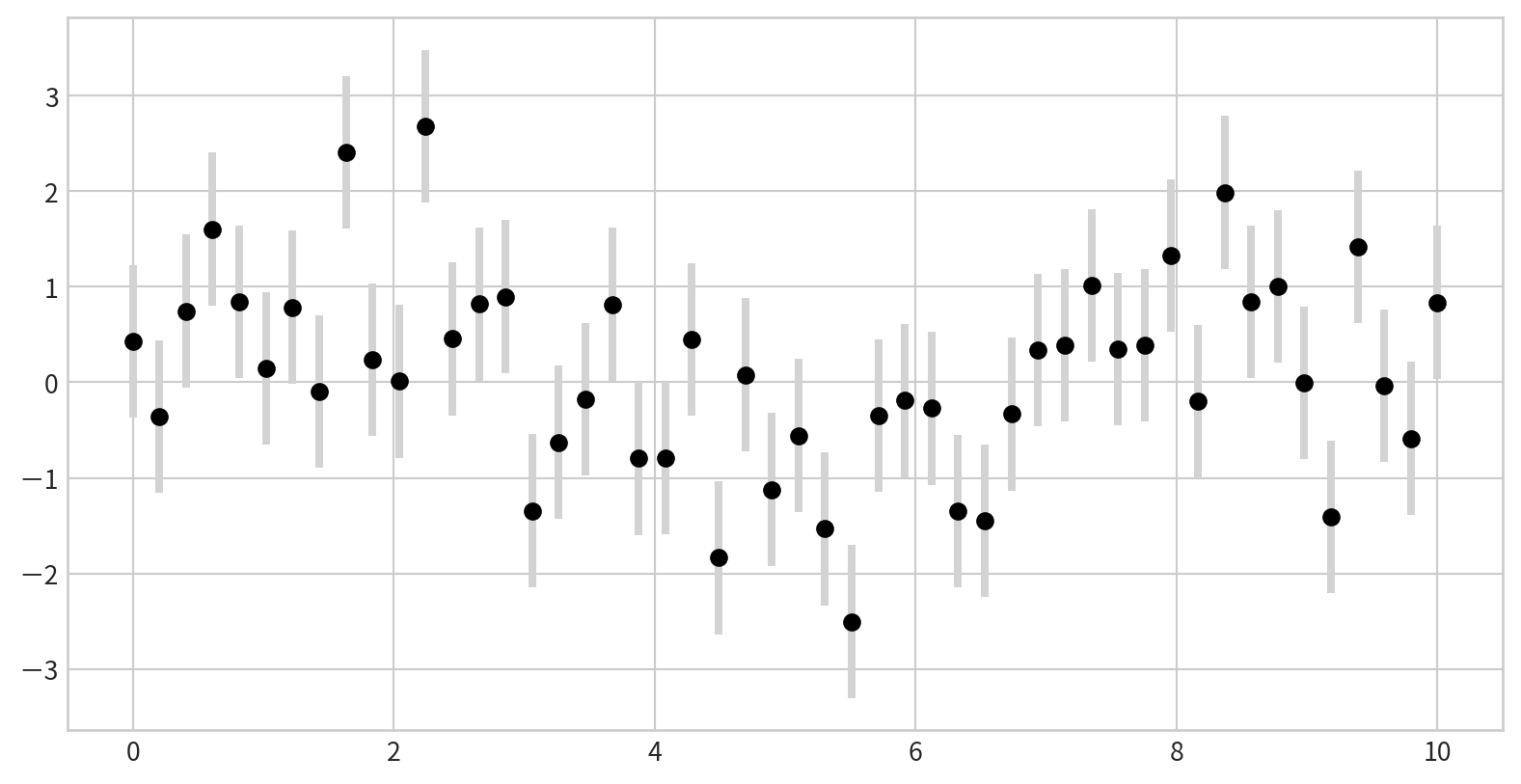
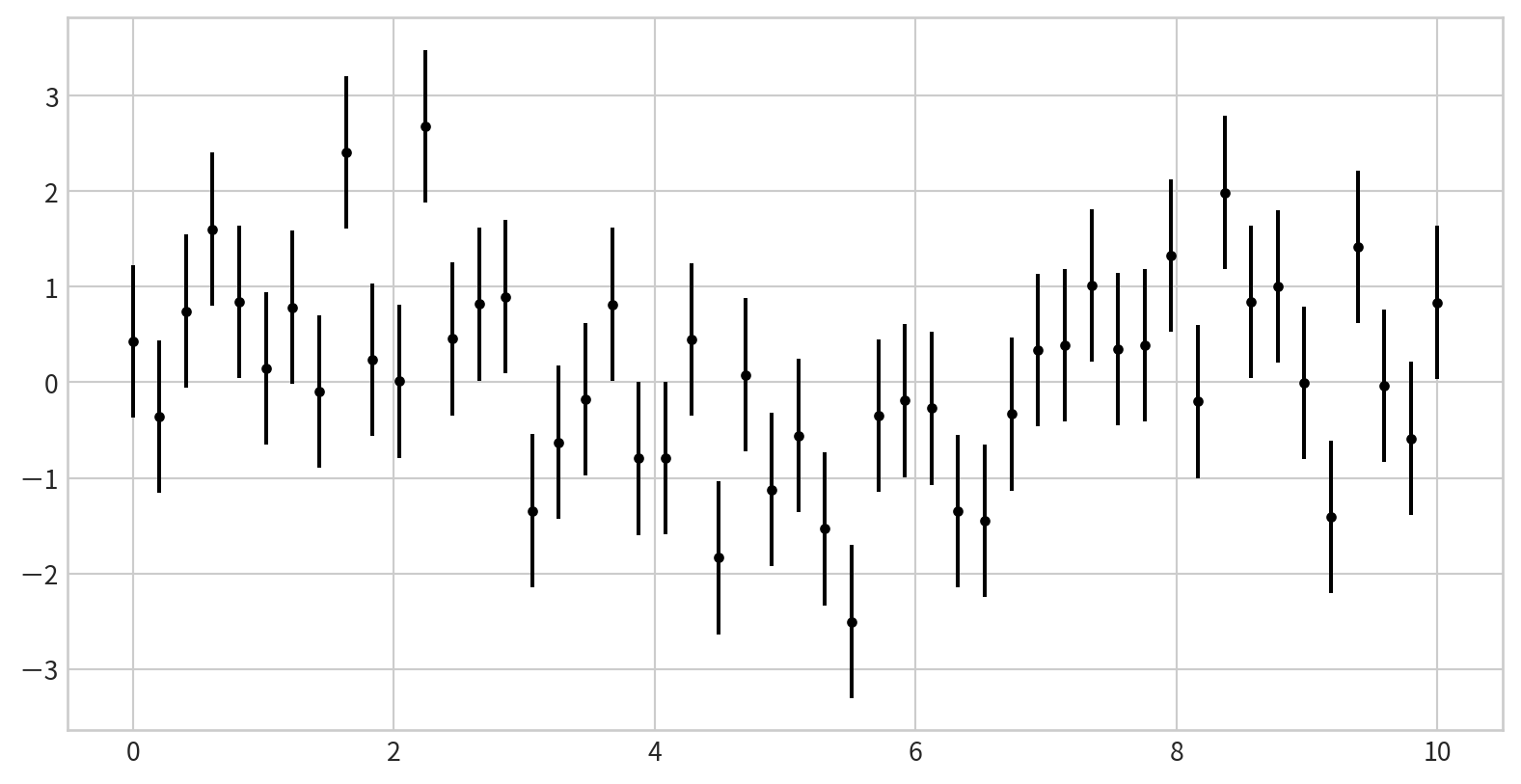
plt.errorbarplt.errorbar(x, y, yerr=error size, fmt = style): add error bars to your plots
yerr specifies the vertical error bar sizefmt controls the marker and line style (same as in plt.plot)Data:
plt.errorbarPlot: plt.errorbar(x, y, yerr=error size, fmt = style)
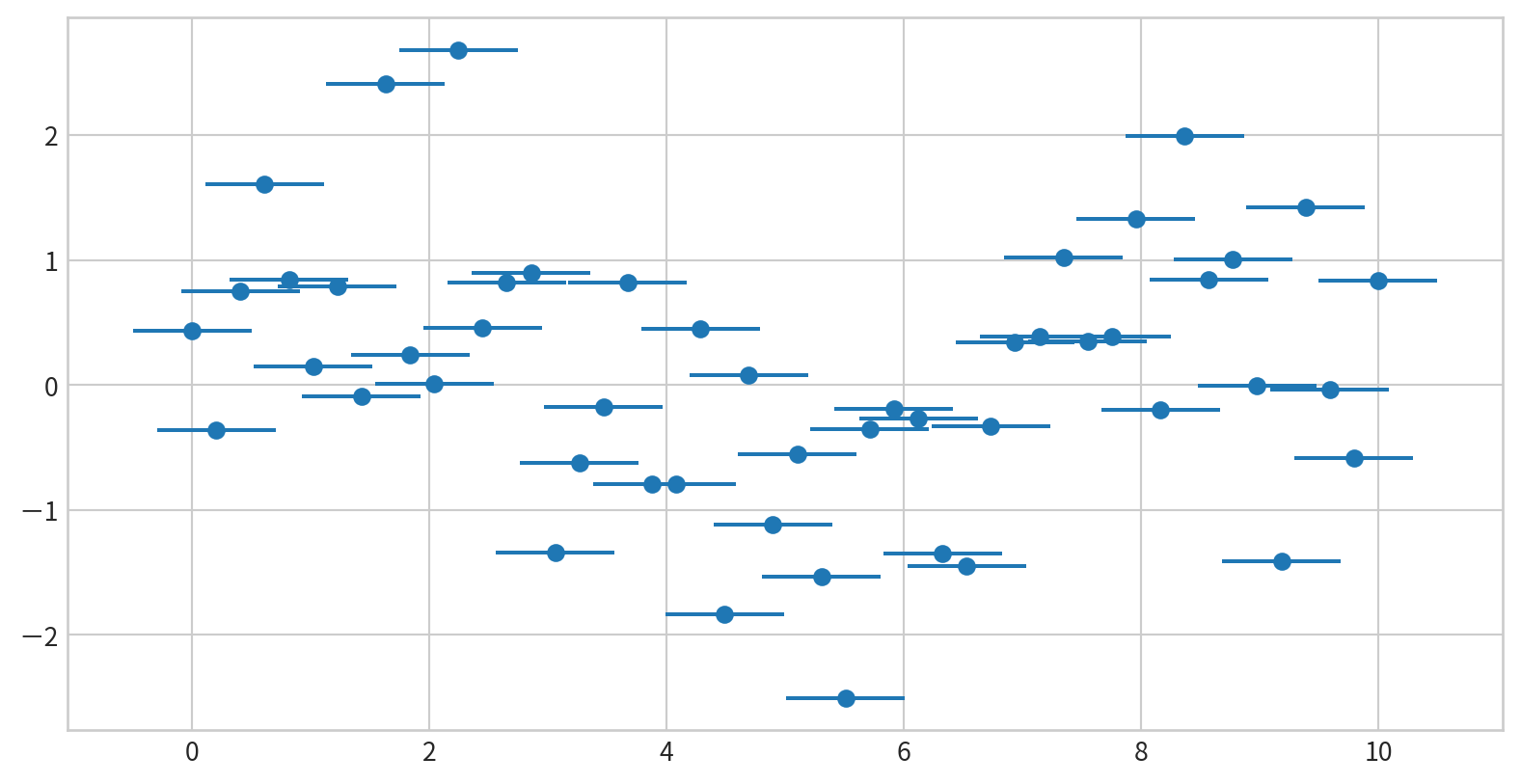
You can adjust the appearance for clarity, especially in crowded plots in plt.errorbar():
ecolor: color of the error barselinewidth: width of error bar linescapsize: size of the error bar capsAdd horizontal error bars using xerr in plt.errorbar()
| Parameter | Description |
|---|---|
yerr |
Vertical error bar sizes |
xerr |
Horizontal error bar sizes |
fmt |
Format string for marker/line style |
ecolor |
Color of error bars |
elinewidth |
Line width of error bars |
capsize |
Size of caps at the ends of error bars |
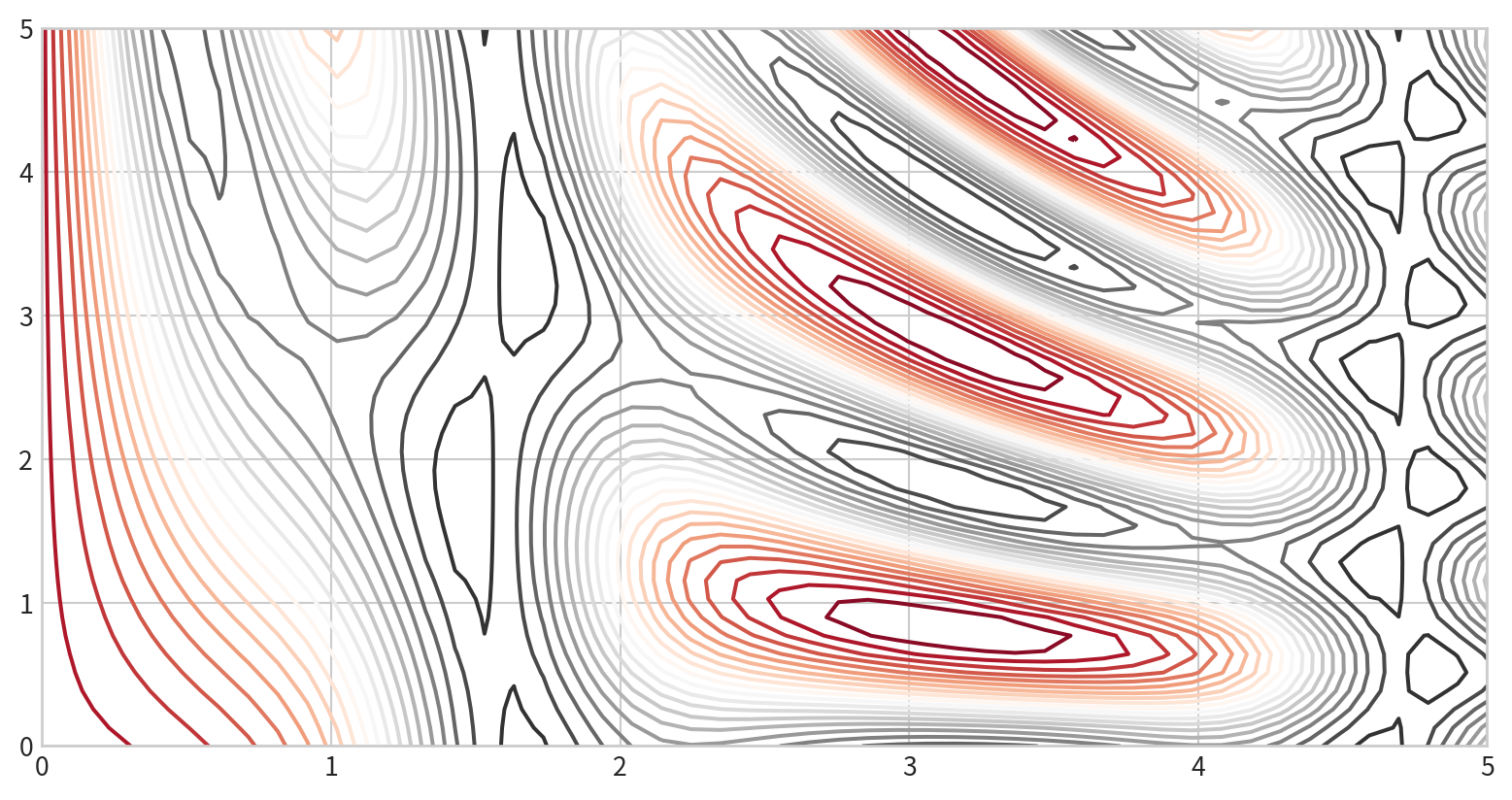
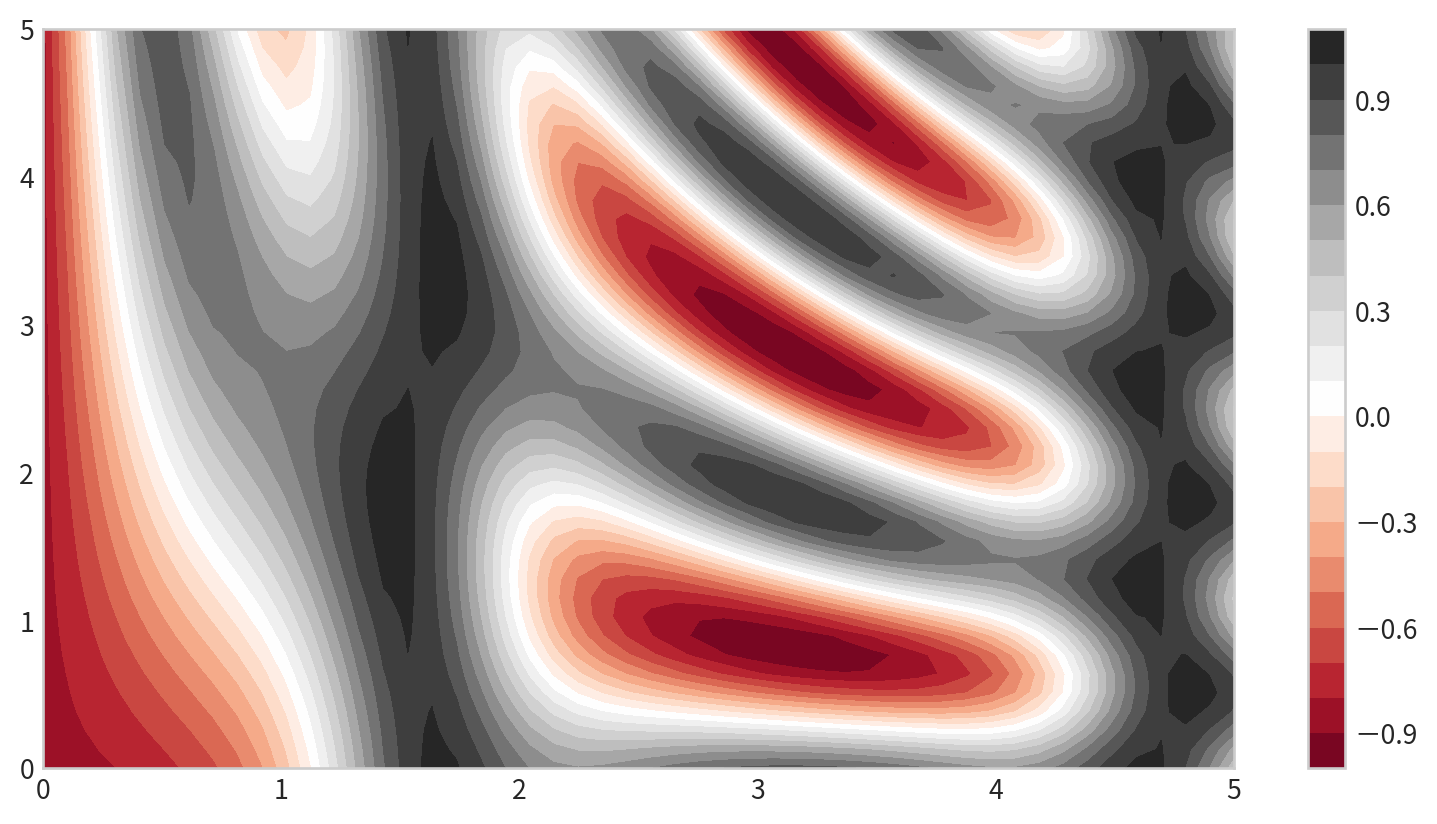
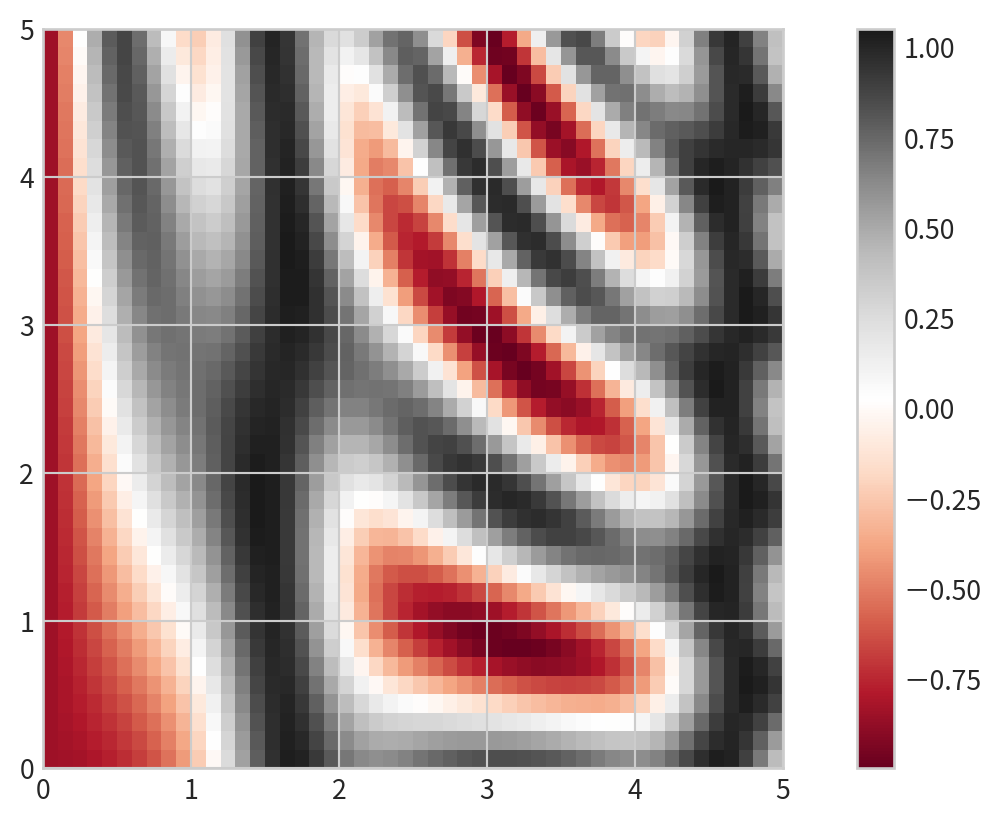
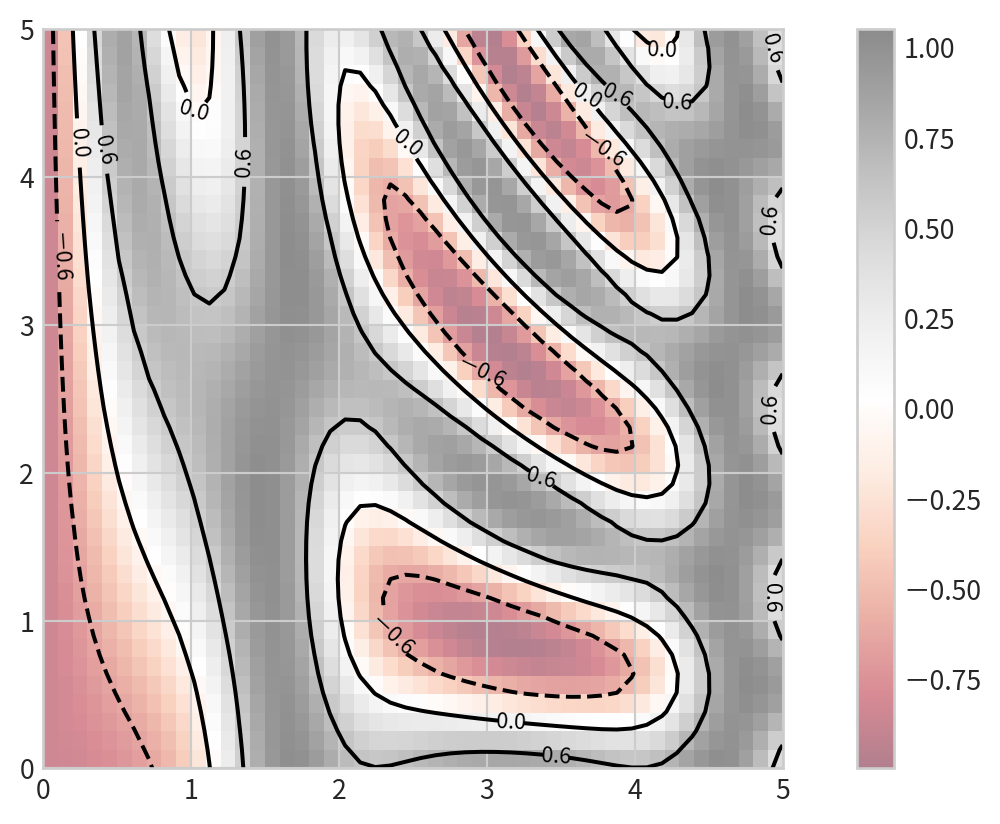
plt.errorbar is flexible and customizable for both simple and advanced needs.plt.contour() for contour linesplt.contourf() for filled contoursplt.imshow() for displaying imagesnp.meshgrid to create the grid:def f(x, y):
return np.sin(x) ** 10 + np.cos(10 + y * x) * np.cos(x)
x = np.linspace(0, 5, 50)
y = np.linspace(0, 5, 40)
X, Y = np.meshgrid(x, y)
Z = f(X, Y)
print(Z)[[-0.83907153 -0.83470697 -0.8216586 ... 0.8956708 0.68617261
0.41940746]
[-0.83907153 -0.8275558 -0.80744041 ... 0.93467448 0.77467433
0.55894214]
[-0.83907153 -0.820263 -0.79266951 ... 0.98503397 0.88847607
0.73757604]
...
[-0.83907153 -0.48696962 -0.02692065 ... 0.98525345 0.79584263
0.46799565]
[-0.83907153 -0.47558005 -0.00130271 ... 0.93488414 0.6993547
0.37933079]
[-0.83907153 -0.46410908 0.02431613 ... 0.89579384 0.65690314
0.40107702]]
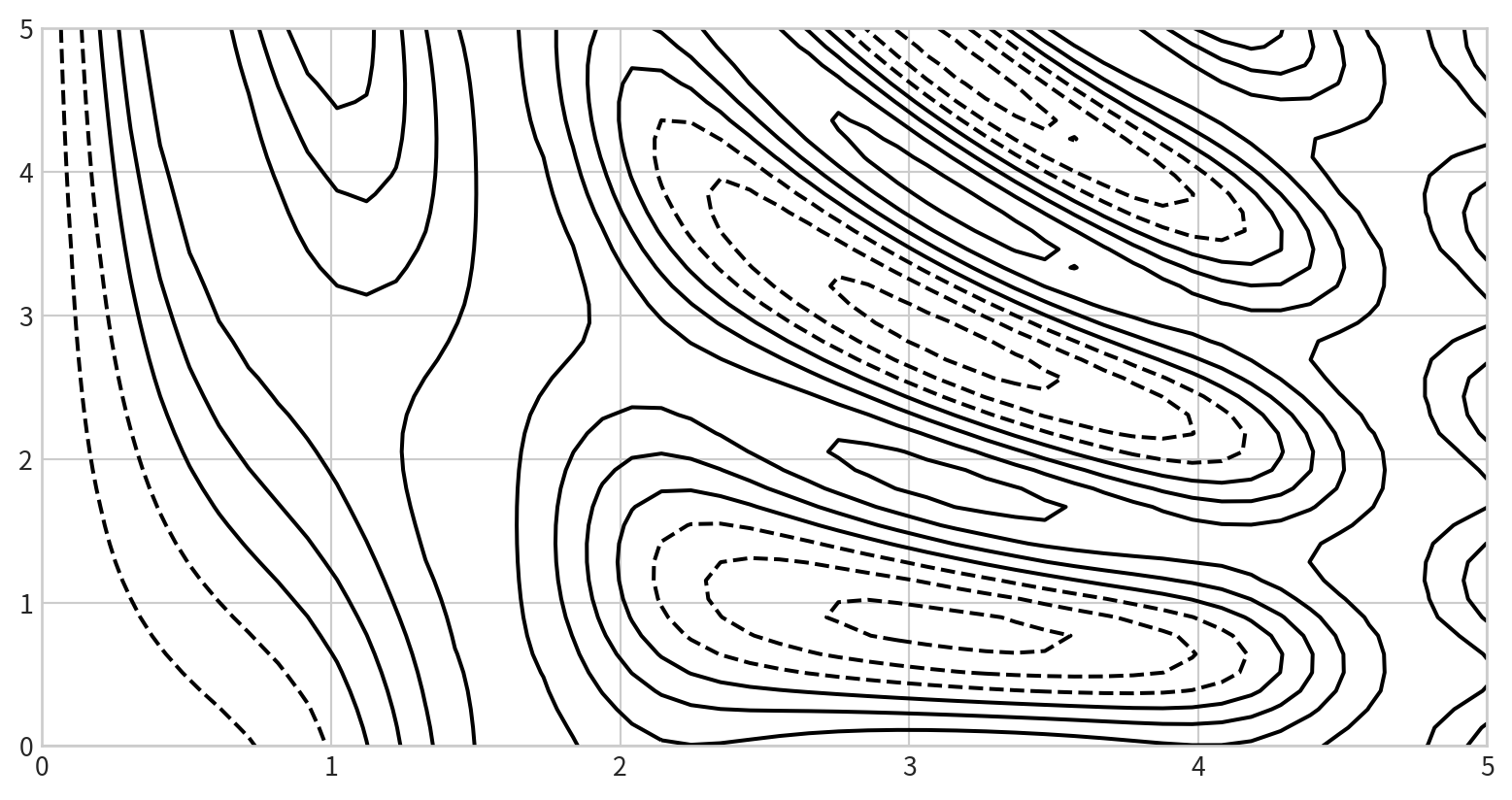
plt.contour(X, Y, Z, colors)
Negative values are dashed lines, positive values are solid lines
cmap: to specify a colormap20plt.contourf() for filled contoursplt.colorbar() for reference:plt.imshow to display the grid as an image
extent manually.imshow is the upper left; set origin='lower' for consistency with contour plots.Overlay contours on an image for richer visualization: plt.clabel()- label contour lines
| Function | Description |
|---|---|
plt.contour |
Draws contour lines |
plt.contourf |
Draws filled contours |
plt.imshow |
Displays a 2D array as an image |
plt.colorbar |
Adds a colorbar to the plot |
plt.clabel |
Adds labels to contour lines |
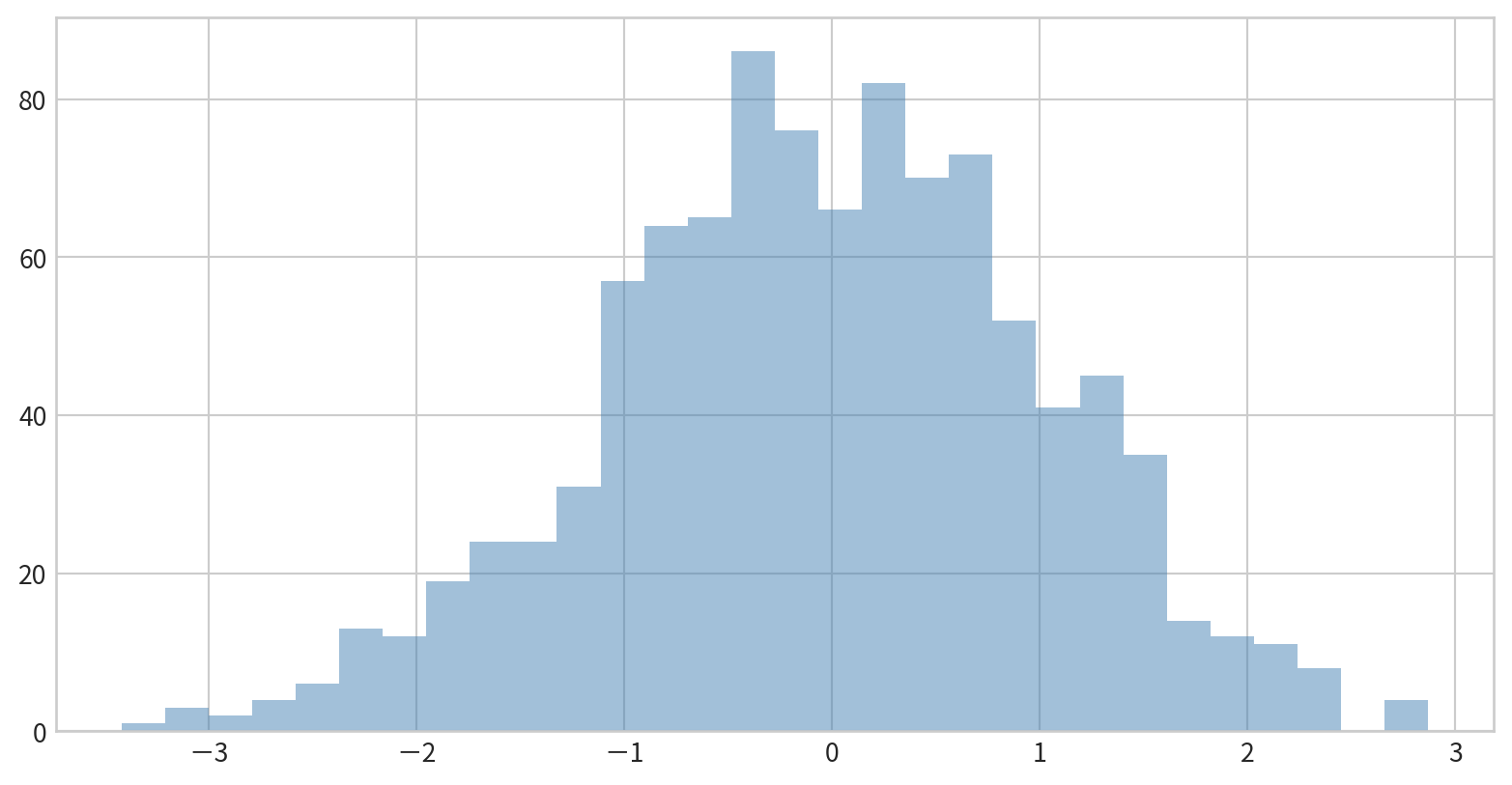
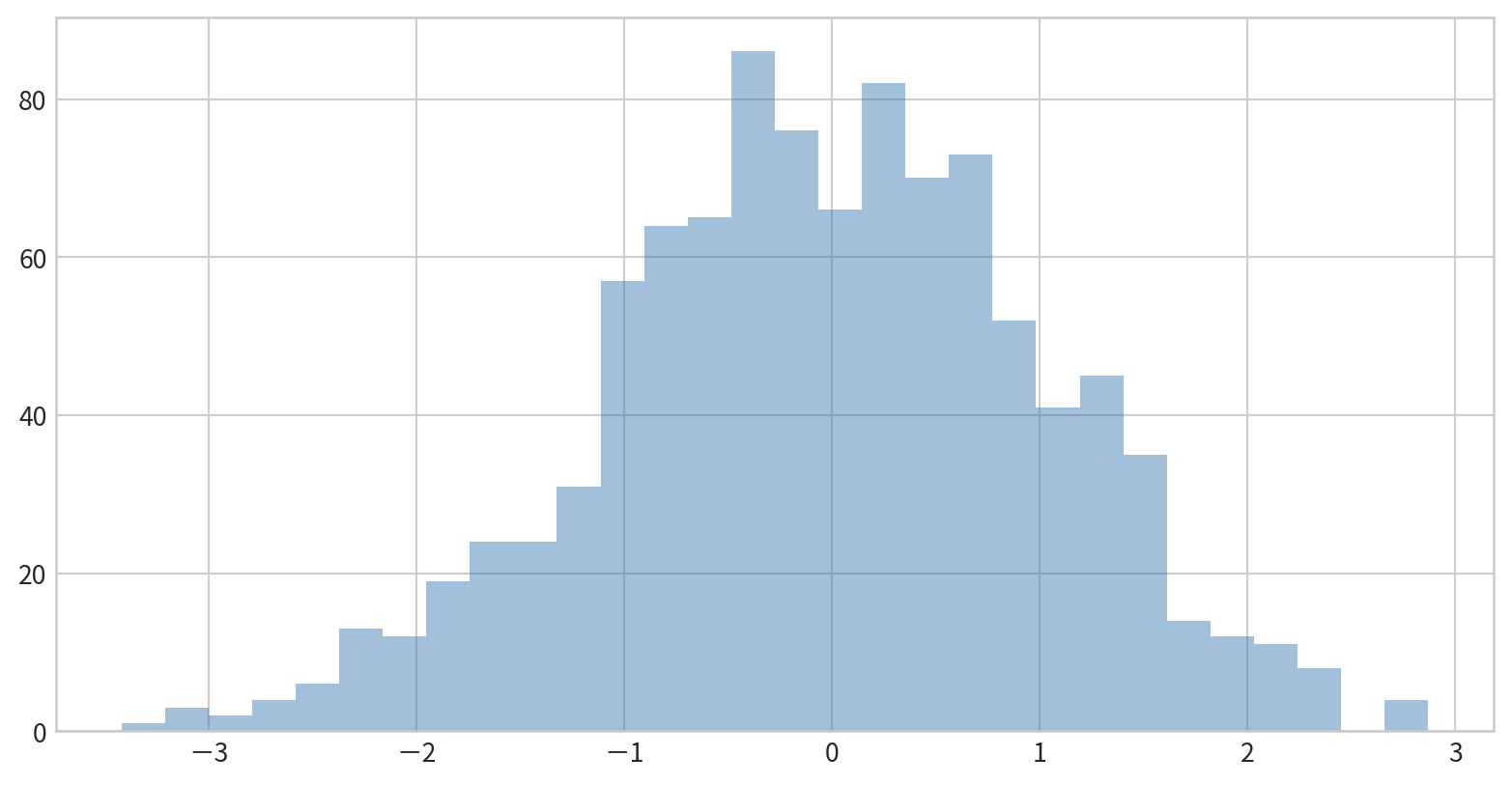
plt.hist(data) displays the distribution of data in default bins
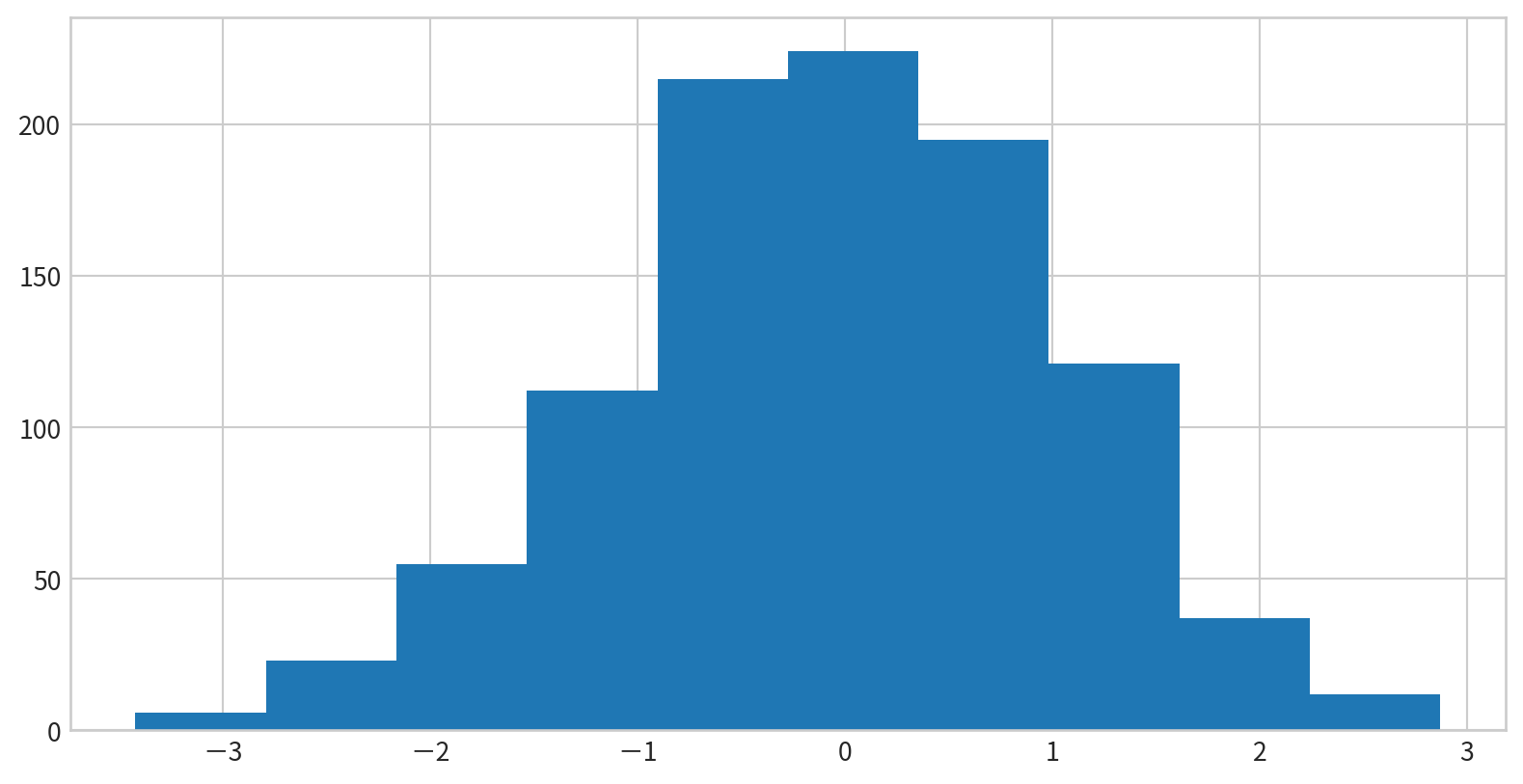
Options to control calculation and display:
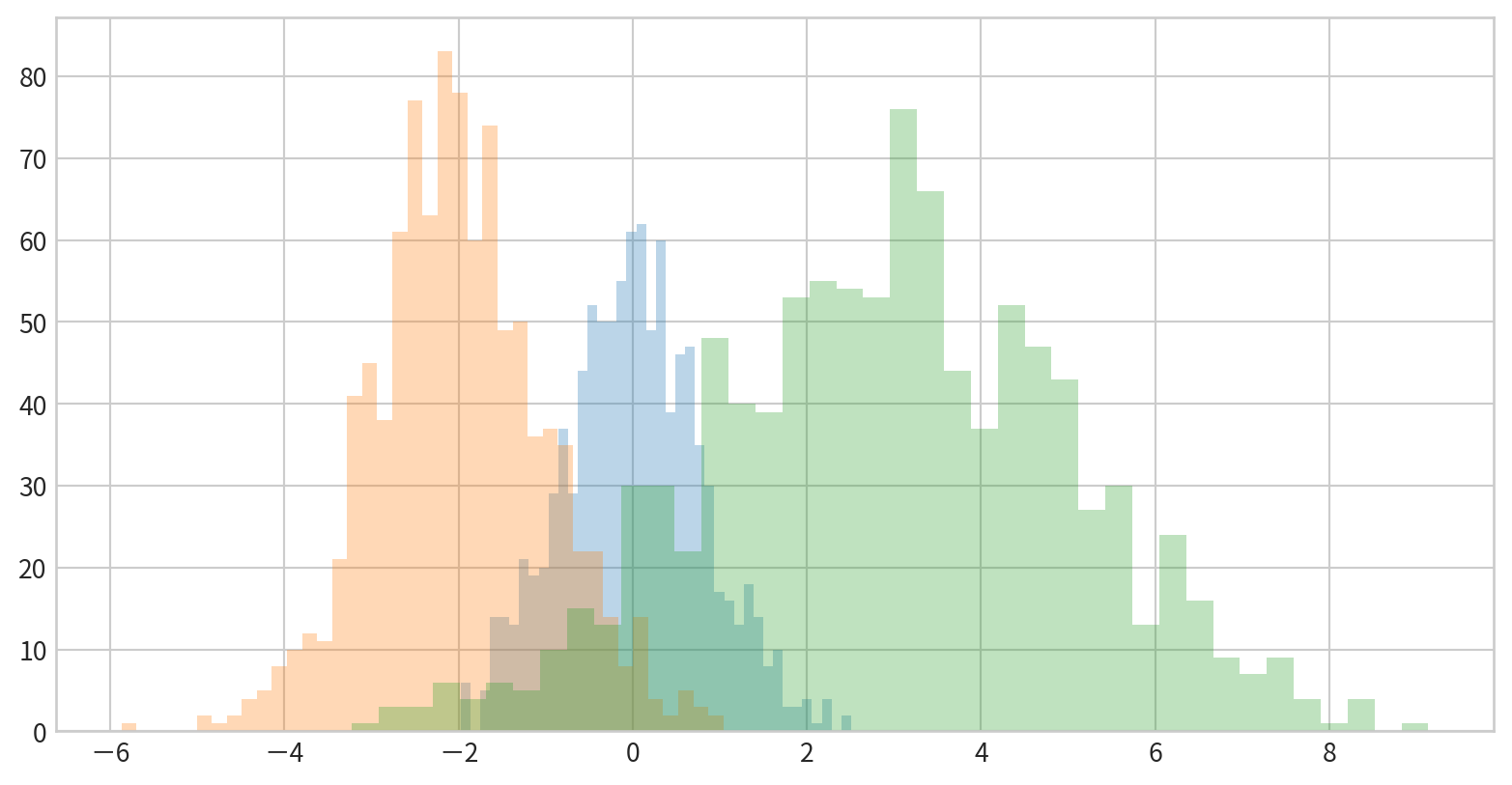
bins: Number of binsalpha: Transparencyhisttype: Type of histogram (e.g., 'stepfilled')color, edgecolor: Color settingsOverlay several histograms using transparency for comparison.
Data:
Use dict(parameters) to set parameters
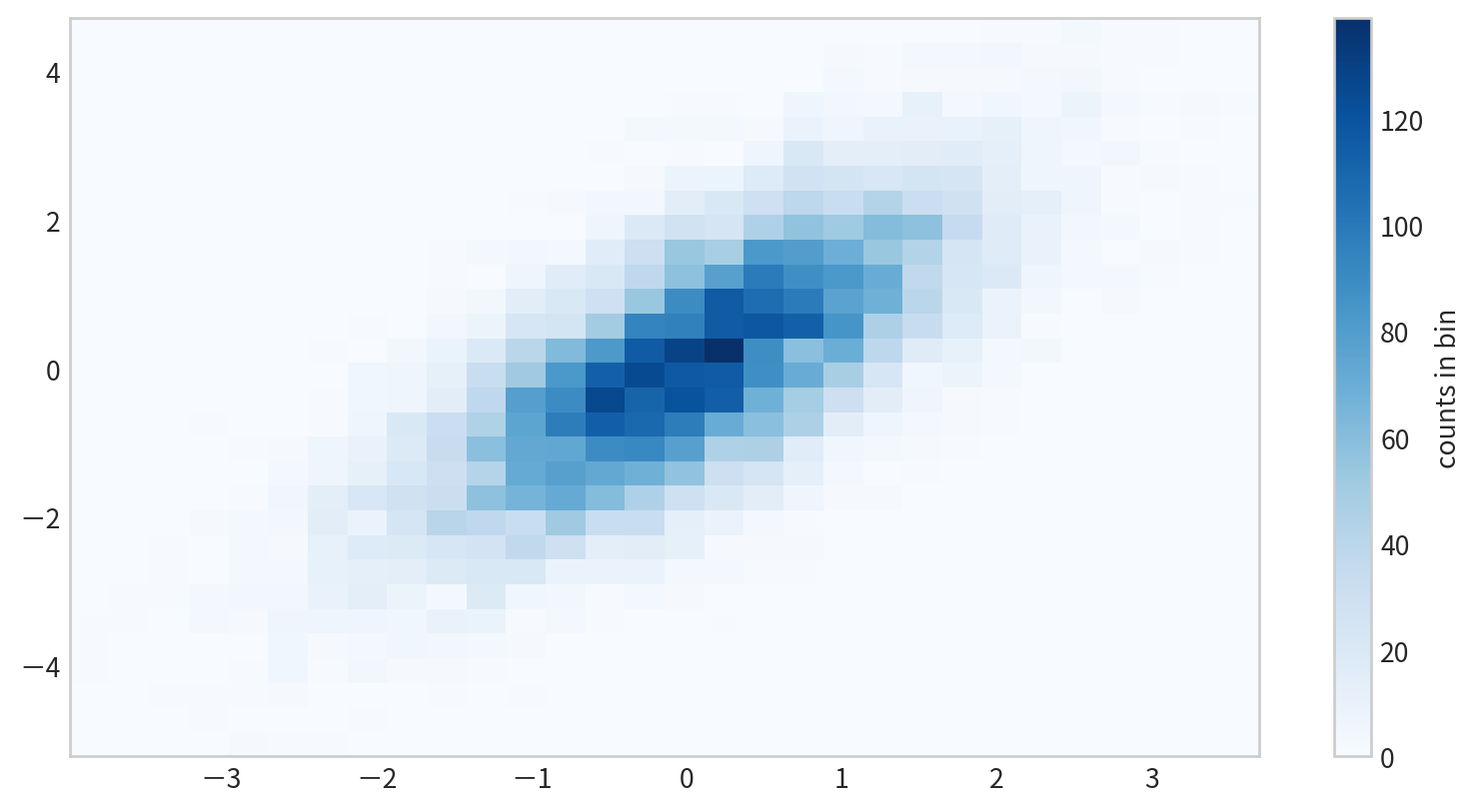
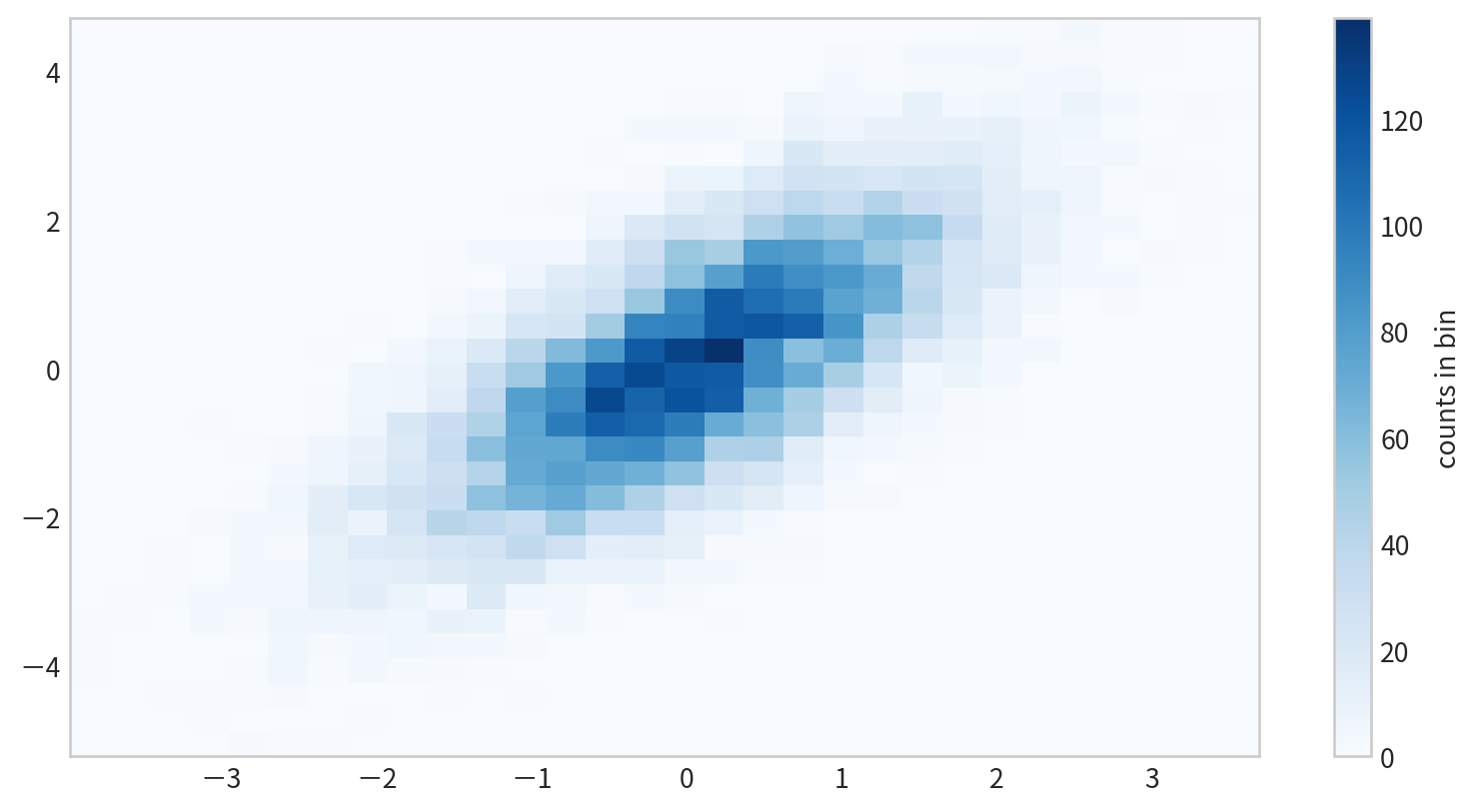
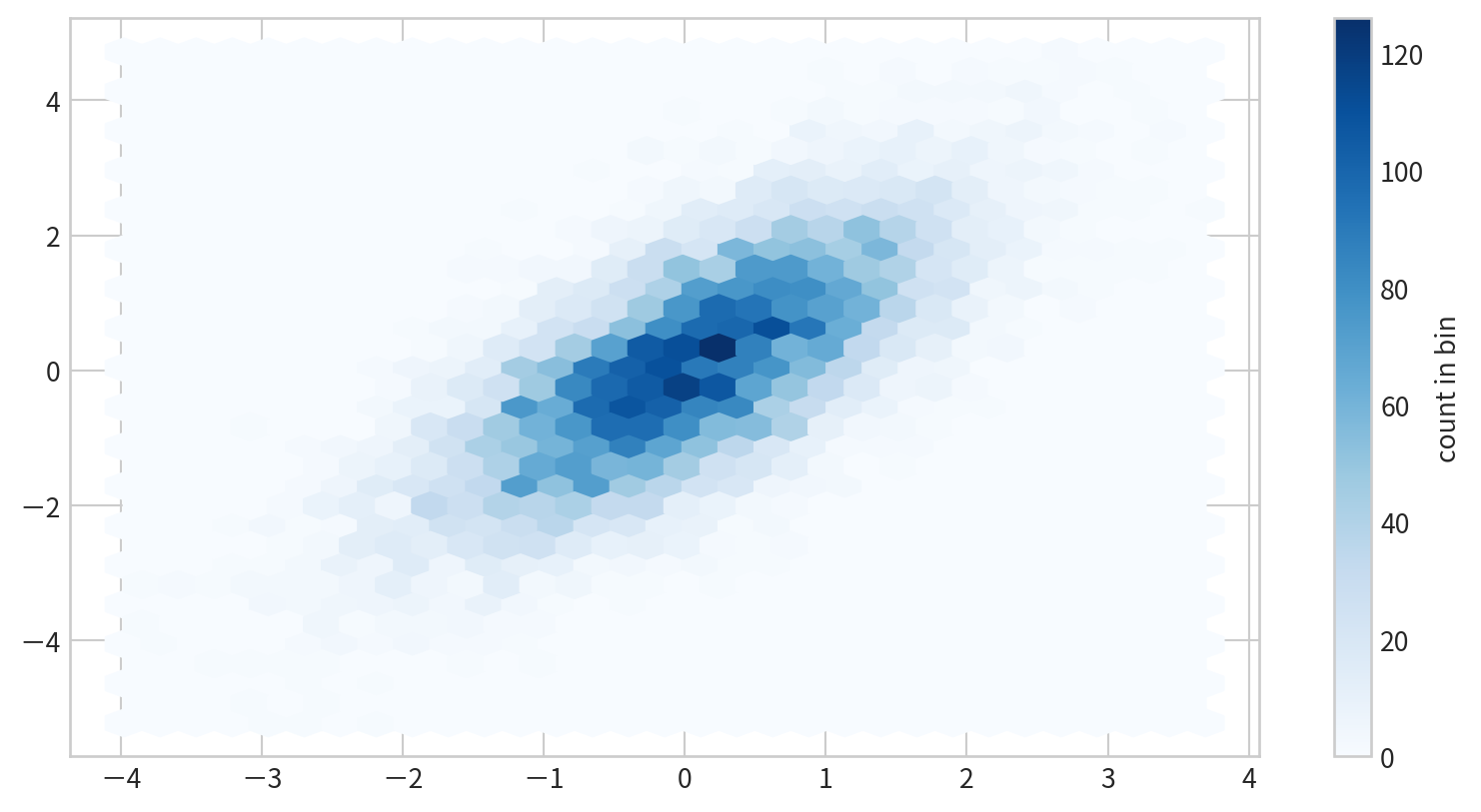
plt.hist2d(x, y)
Data
Figure

plt.hexbin(x,y) use hexagons for 2D binning
| Function | Description |
|---|---|
plt.hist |
1D histogram plot |
plt.hist2d |
2D histogram plot |
plt.hexbin |
2D hexagonal bin plot |
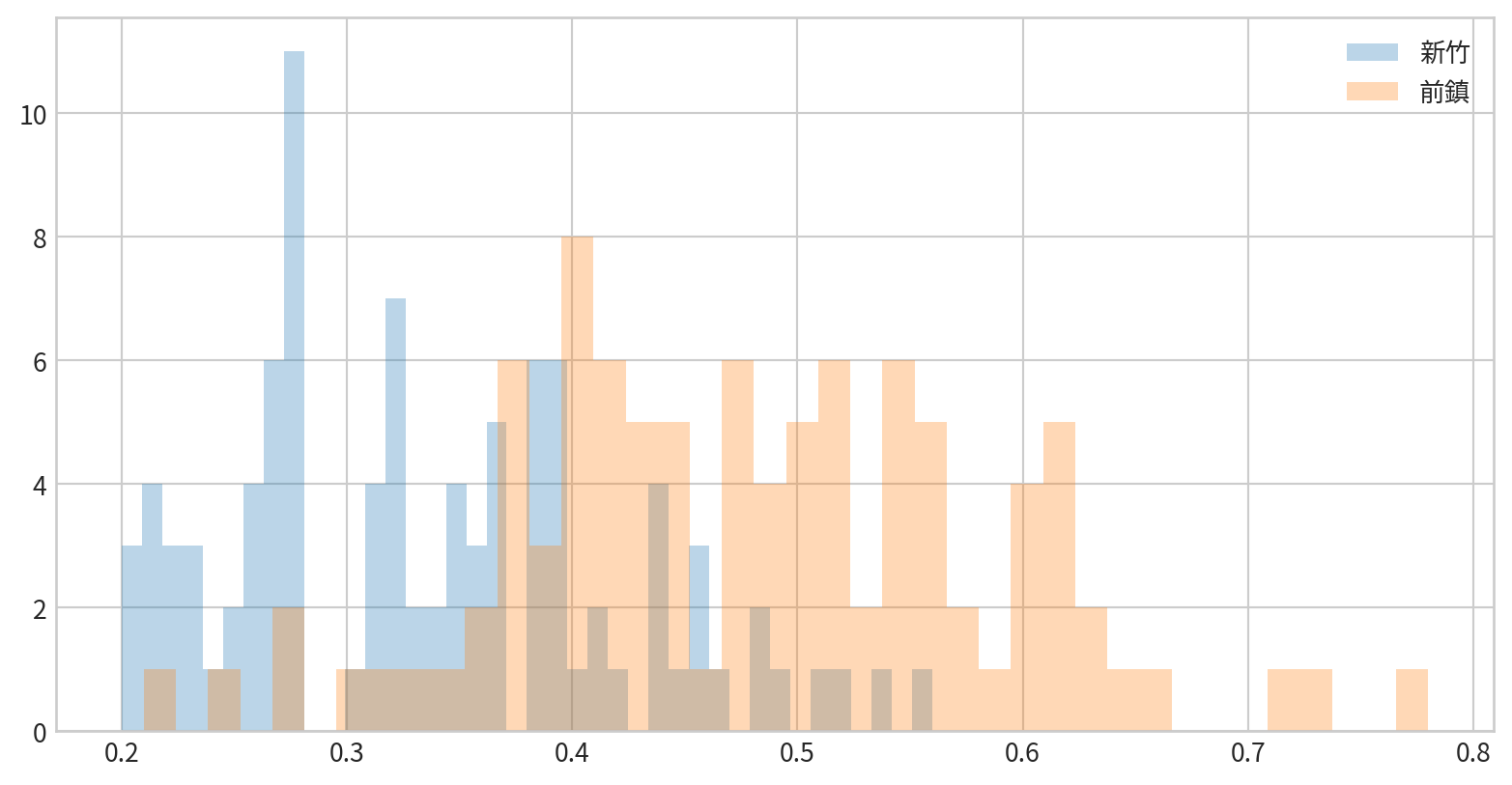
看看新竹與前鎮一氧化碳(CO)的資料分布是否有差異(疊在一張圖中)

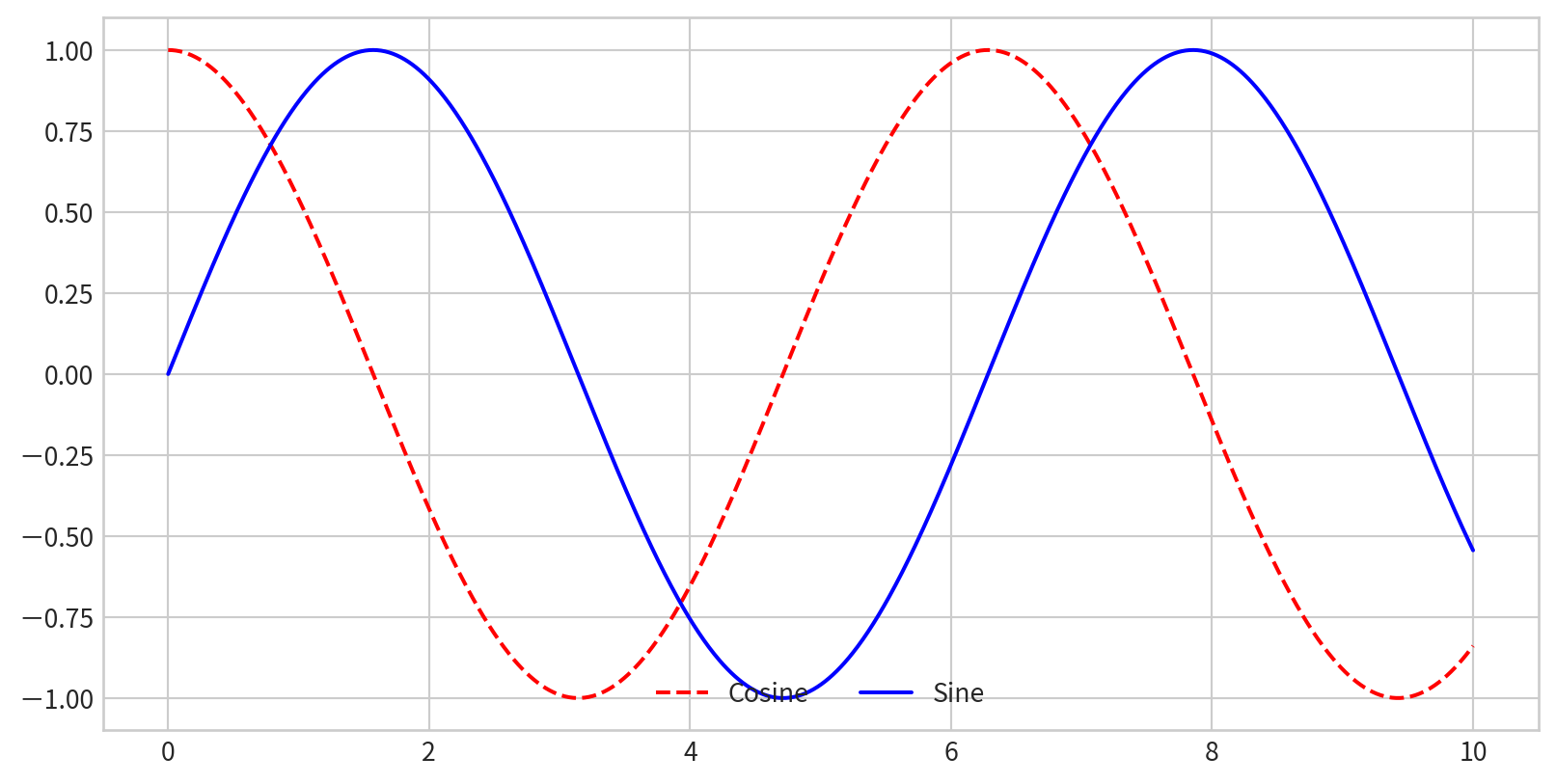
plt.legend().label will appear in the legend.x = np.linspace(0, 10, 1000)
fig = plt.figure()
plt.plot(x, np.sin(x), '-b', label='Sine')
plt.plot(x, np.cos(x), '--r', label='Cosine')
plt.axis('equal')
plt.legend()
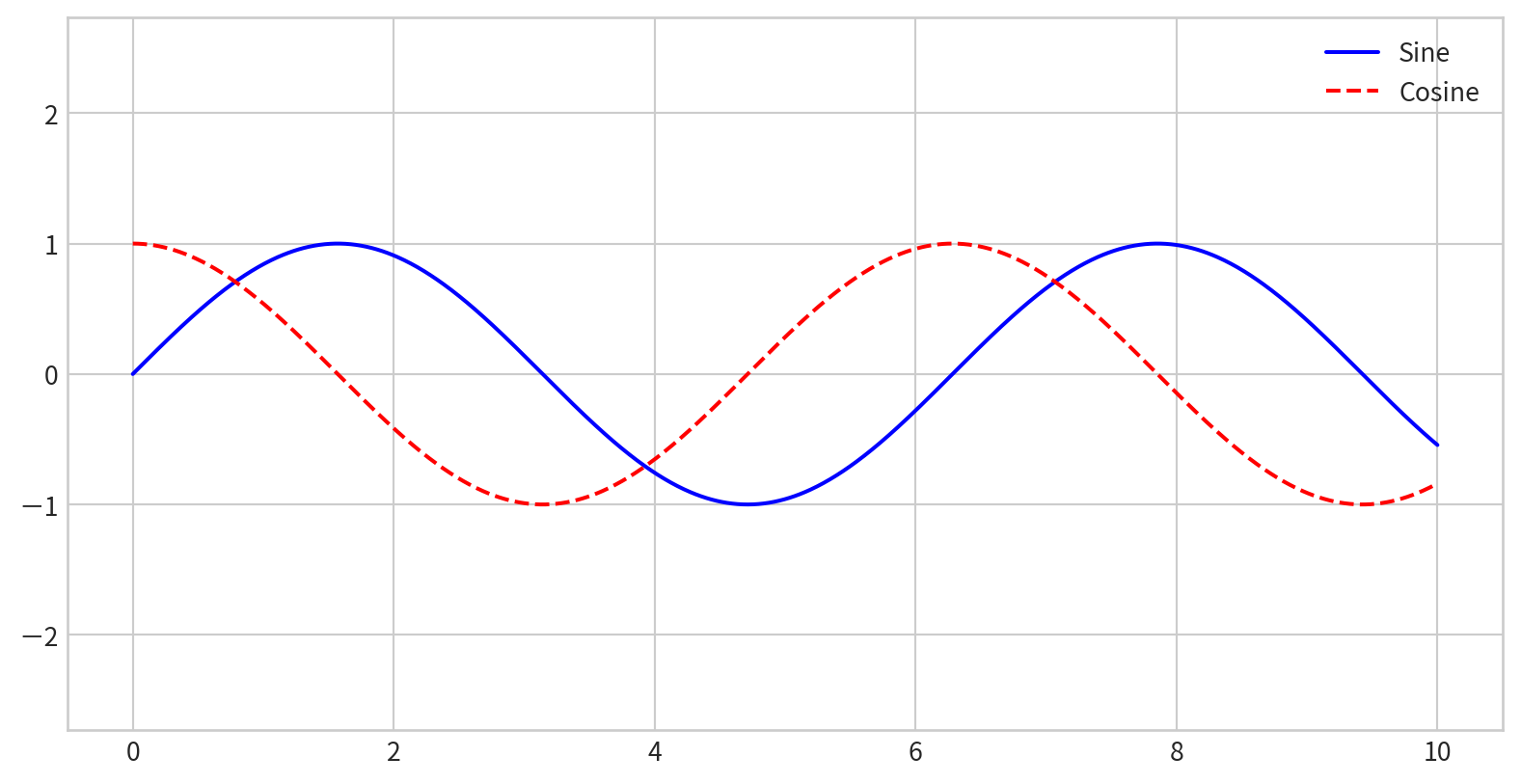
loc parameter (e.g., 'upper left', 'lower center').frameon=False.ncol to arrange legend entries in multiple columns.fancybox, shadow, framealpha, and borderpad.For more options, see the plt.legend docstring.
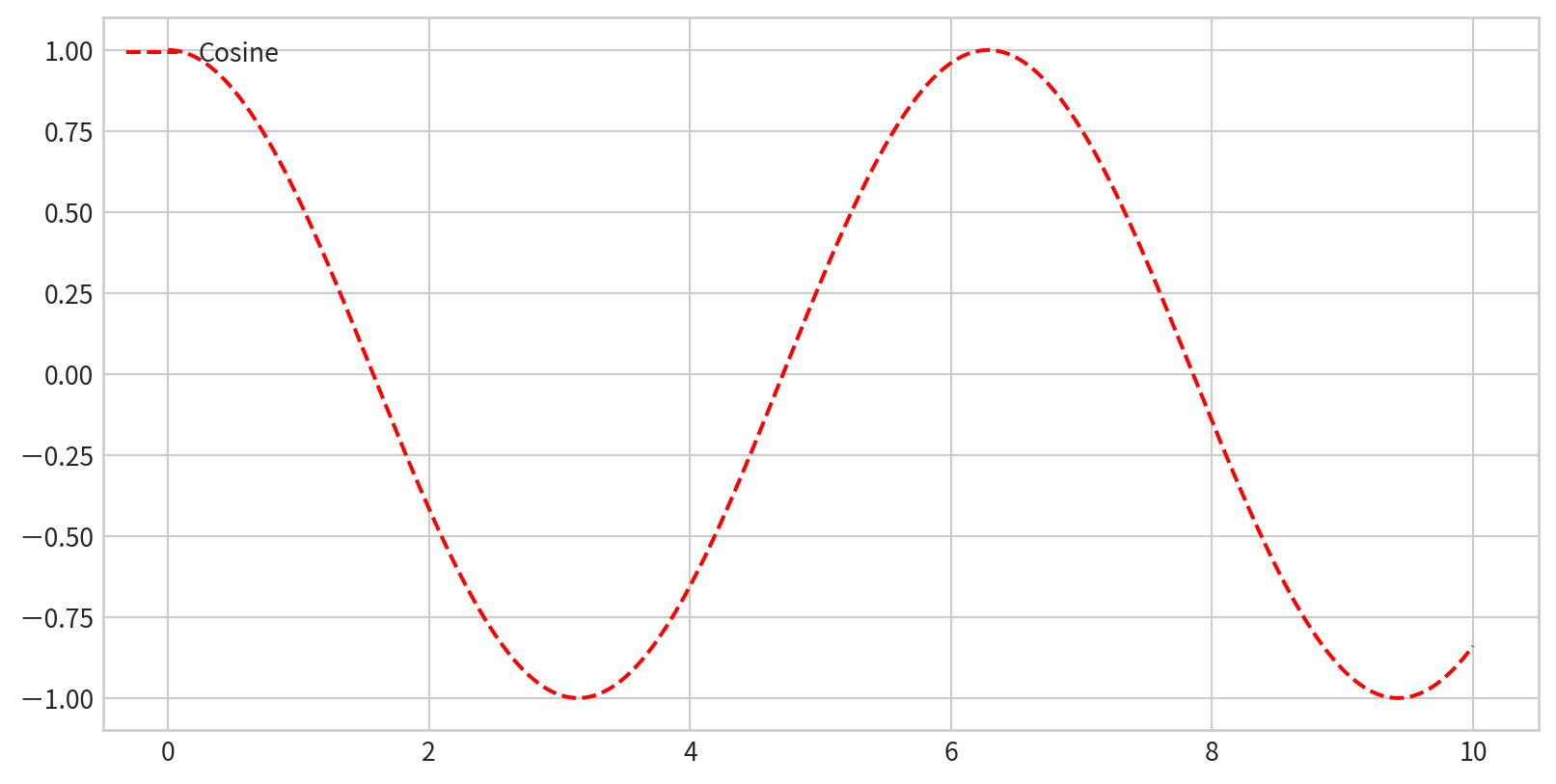
To control which elements appear, pass specific plot objects and labels to legend()
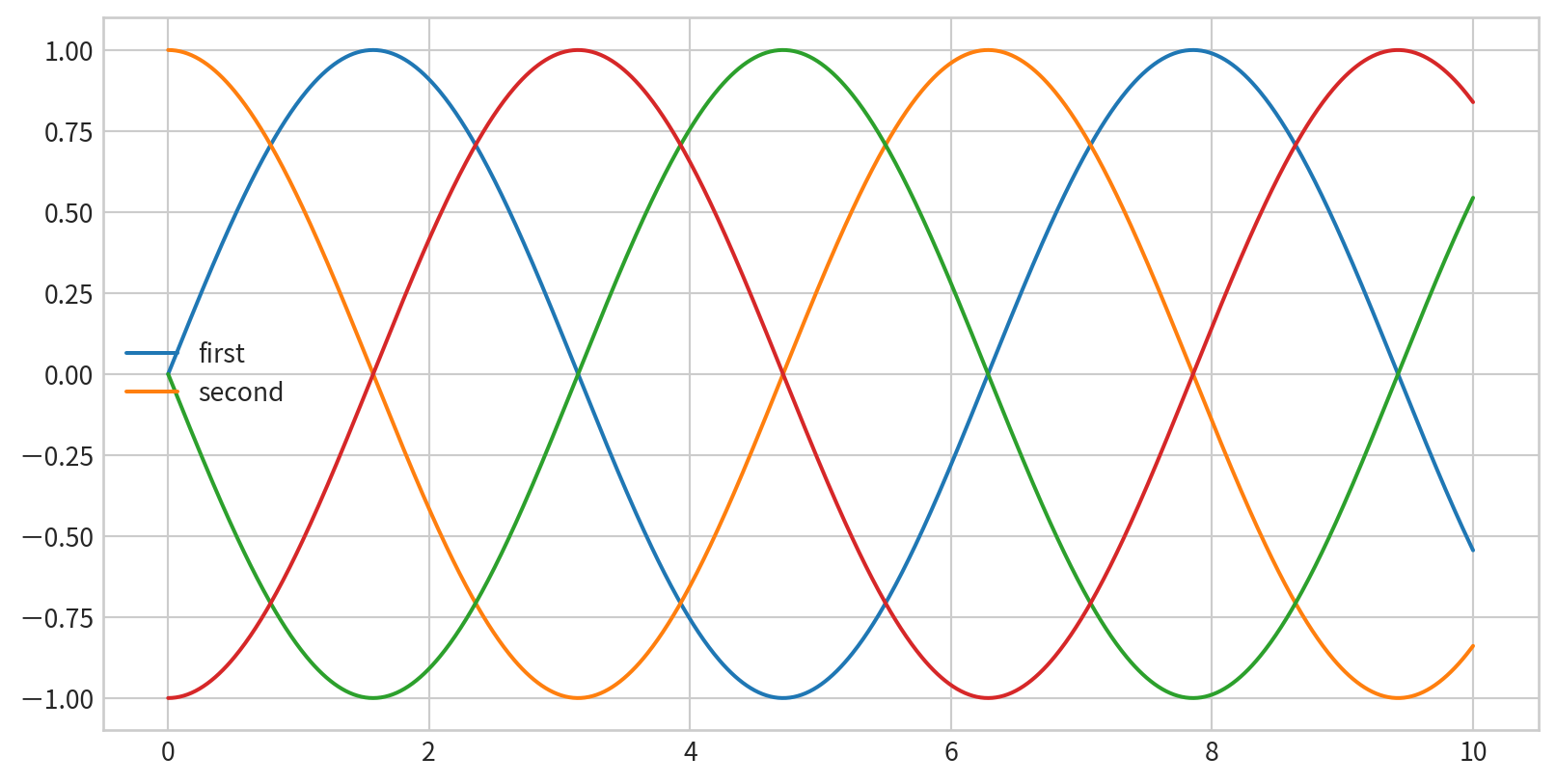
Or only label the elements you want in the legend
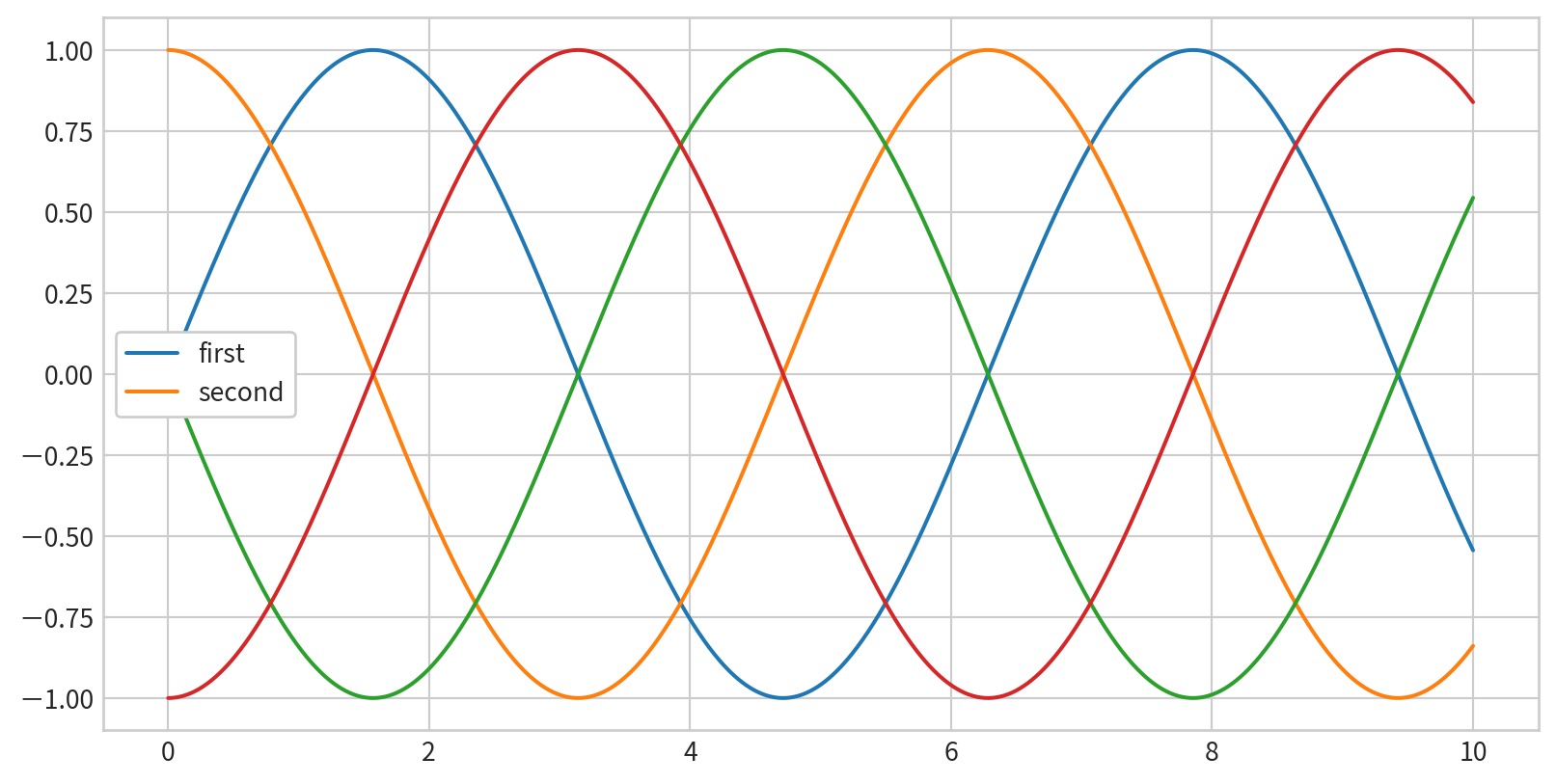
label in plotting commands and call legend() to create legends.Data:
[[ 0. 0.01000984 0.02001868 ... -0.52711499 -0.53559488
-0.54402111]
[ 0. 0.01000934 0.02001768 ... -0.52708858 -0.53556805
-0.54399386]
[ 0. 0.01000784 0.02001467 ... -0.52700936 -0.53548755
-0.54391209]
...
[-0. -0.0085063 -0.01701176 ... 0.44793914 0.4551453
0.46230586]
[-0. -0.00845306 -0.01690528 ... 0.44513546 0.45229652
0.45941226]
[-0. -0.00839897 -0.01679711 ... 0.44228718 0.44940242
0.45647263]]
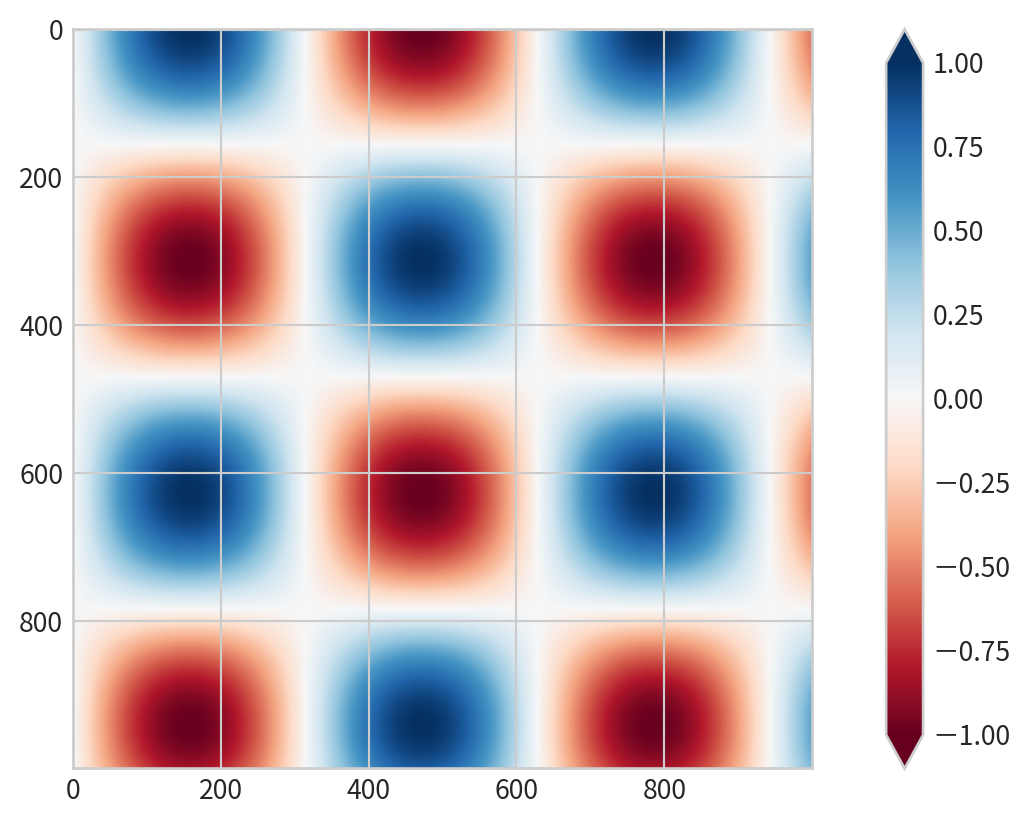
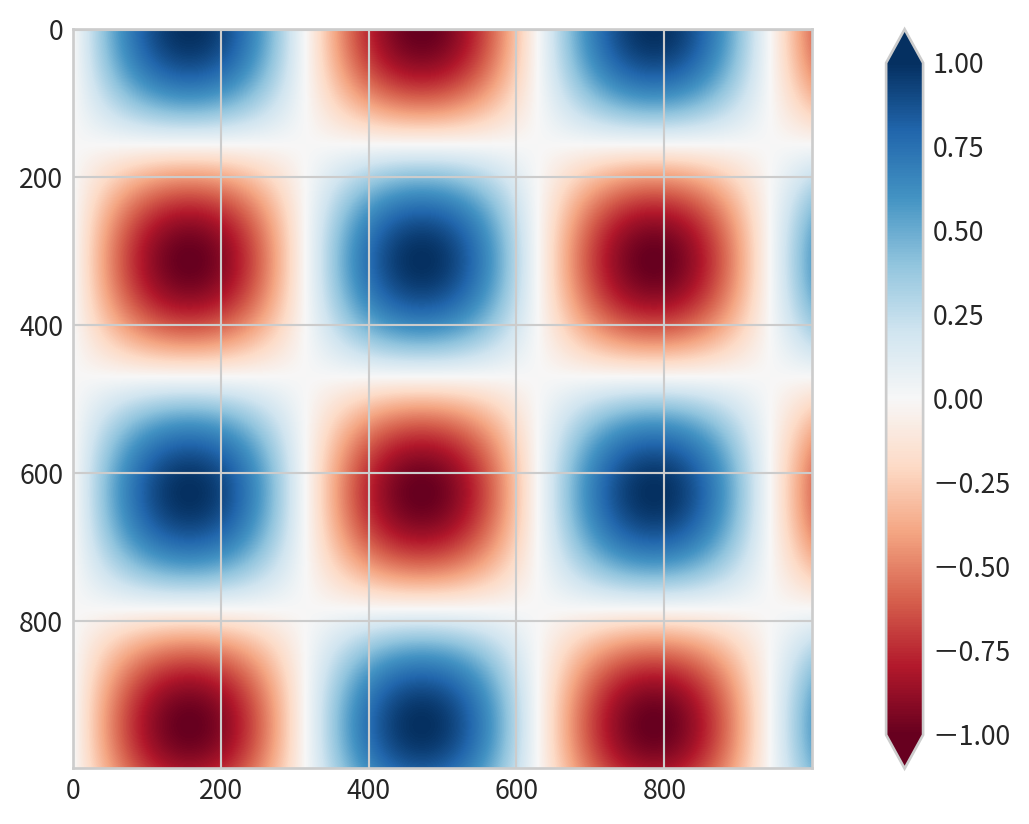
Add plt.colorbar() after using color mapping:
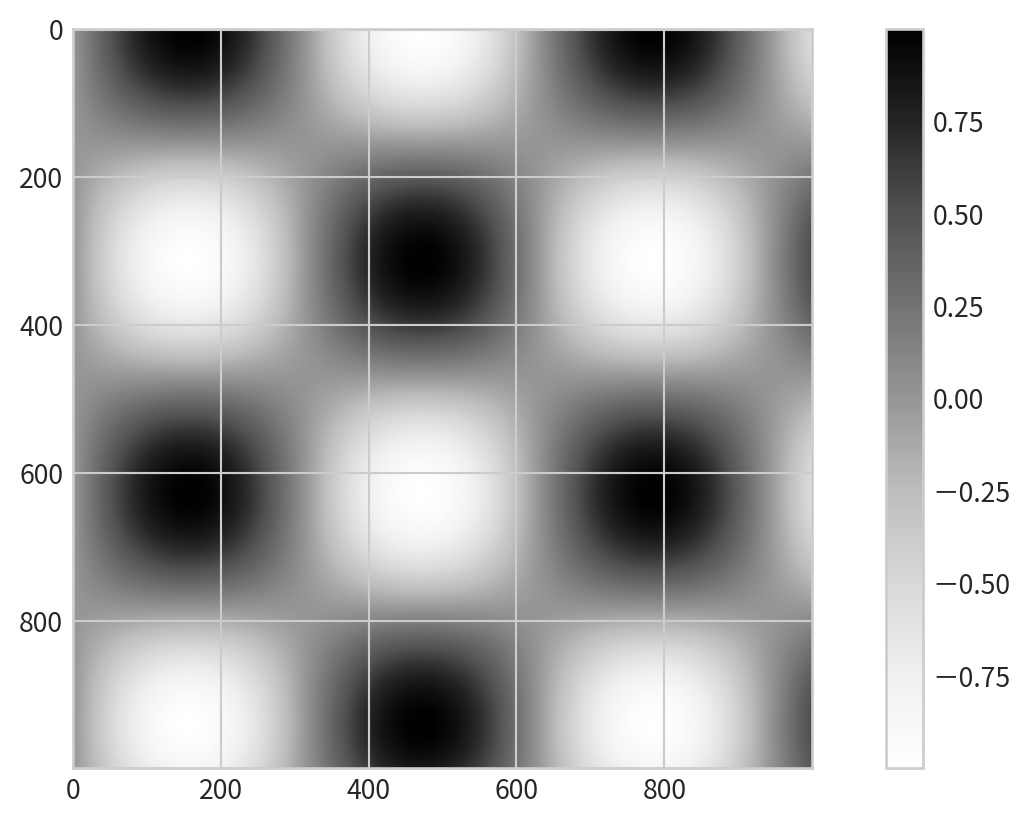
Specify a colormap with the cmap argument (check plt.cm namespace (e.g., plt.cm.viridis, plt.cm.RdBu))
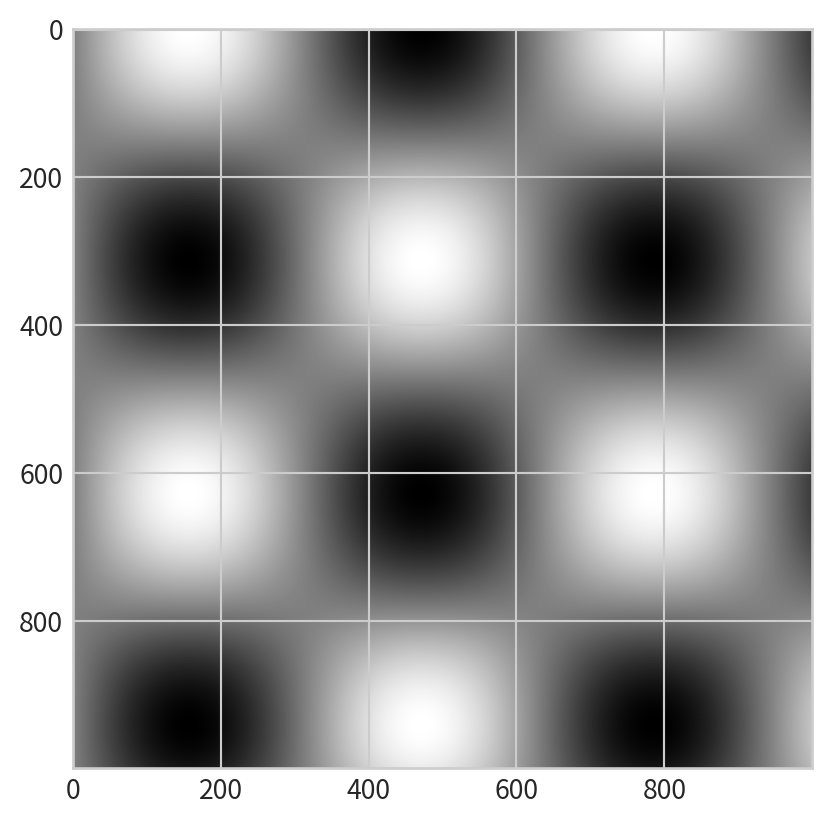
binary, viridis).RdBu, PuOr).rainbow, jet).plt.clim() (to focus on a specific data range)extend in plt.colorbar()
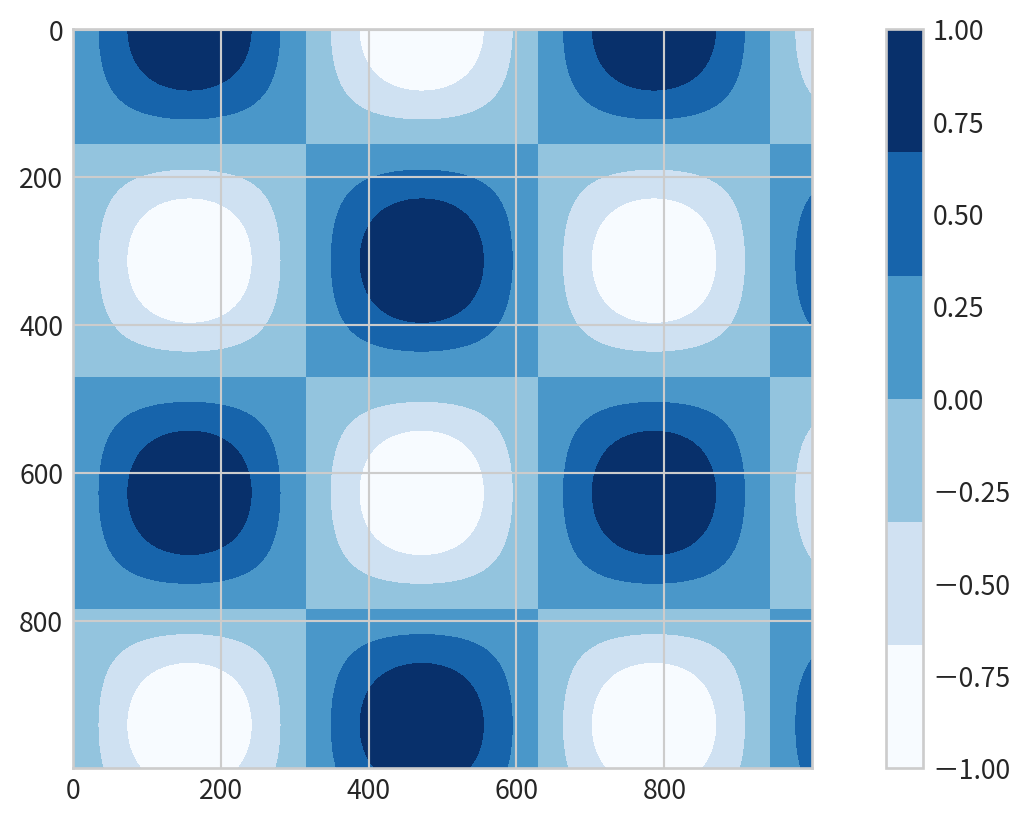
Represent discrete values: plt.cm.get_cmap() with number of bins
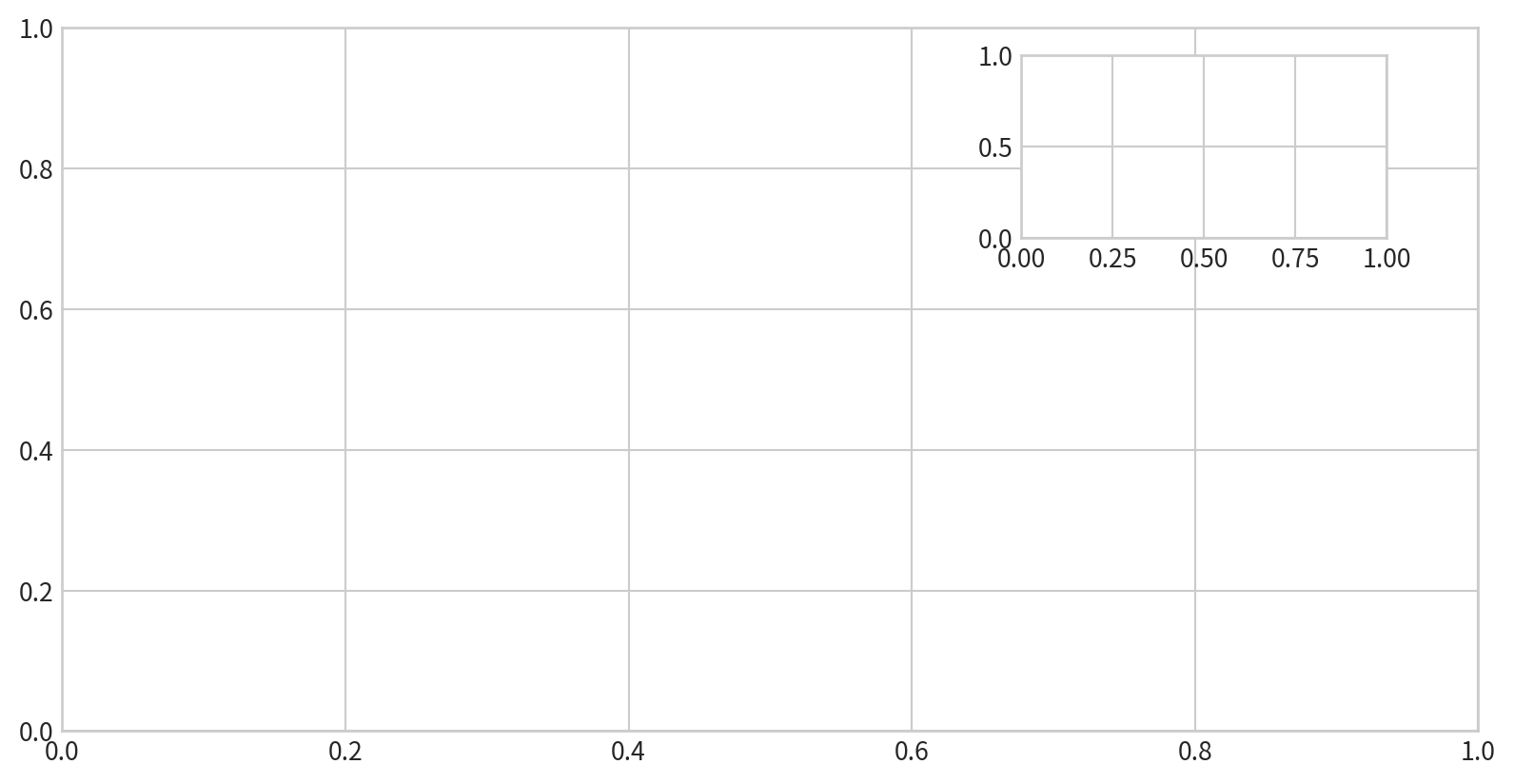
plt.axesCreate axes anywhere in the figure by specifying [left, bottom, width, height] in figure coordinates (0 to 1).
plt.subplotCreate a grid of subplots by specifying rows, columns, and plot index (starts at 1, goes left-to-right, top-to-bottom). plt.subplot(row, col, plot index)
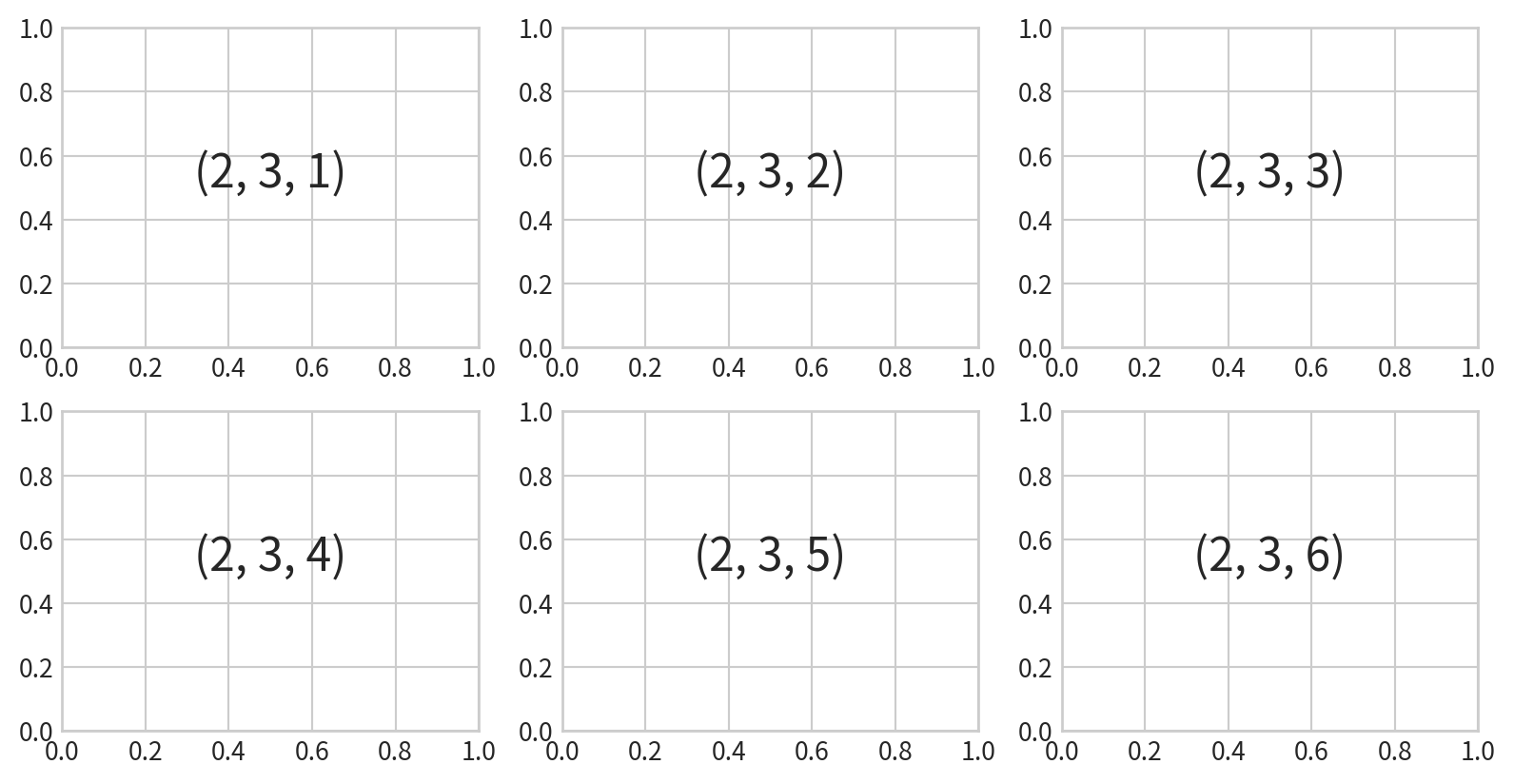
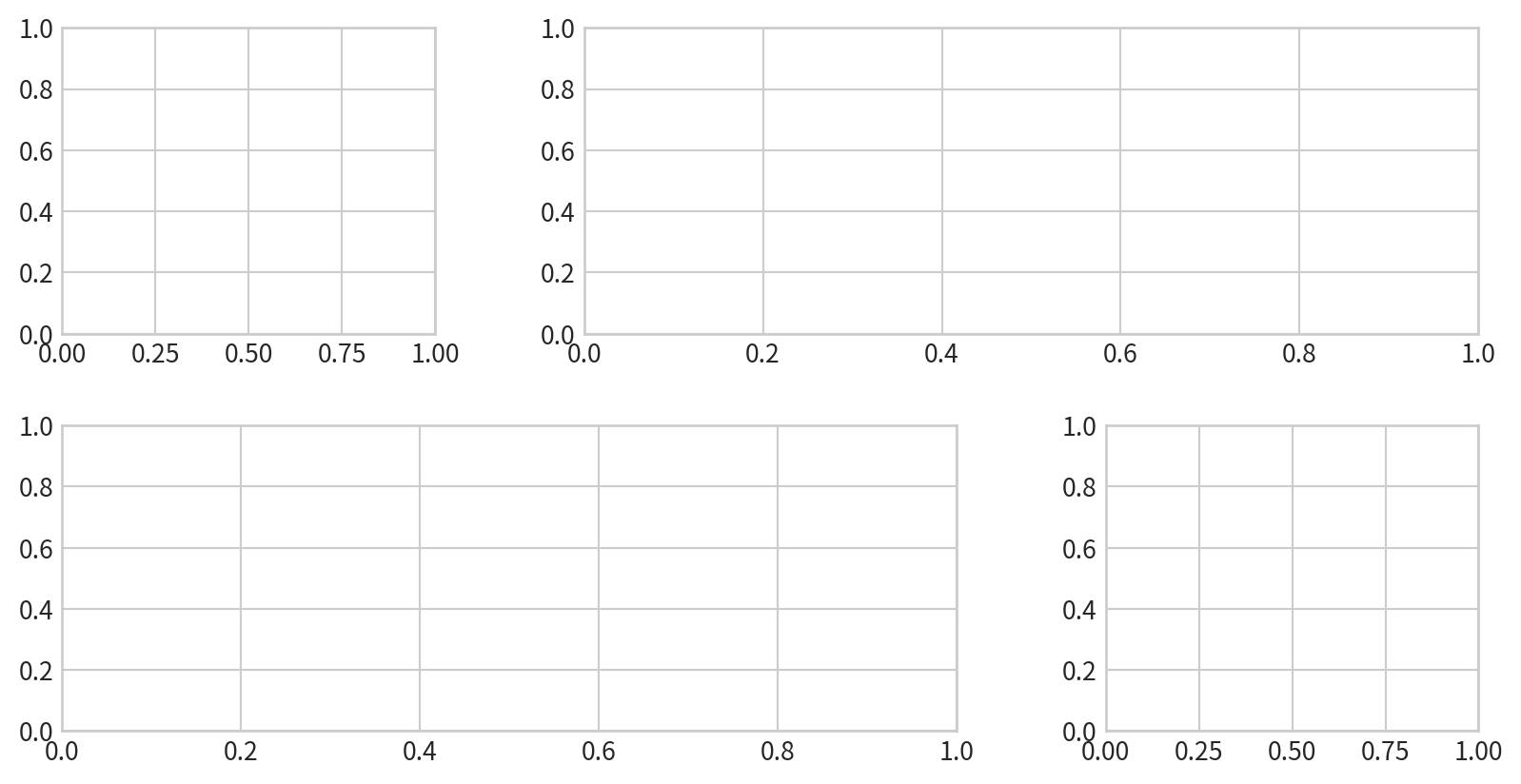
plt.GridSpecFor more complex arrangements
| Method | Use Case | Access Pattern |
|---|---|---|
plt.axes |
Manual, precise placement | Variable names |
plt.subplot |
Simple grid, small number of subplots | Index (1-based) |
plt.GridSpec |
Complex, flexible layouts | Slicing, subplots |